Why Your Blender Materials Look Like Plastic
2026-10-18
Everything you render looks like it was injection-moulded. The wood looks like plastic pretending to be wood, the metal looks like plastic painted silver, and the stone looks like a toy.
This is such a universal stage that it is almost a rite of passage. It is also four specific, fixable problems — and the first one is not an art problem at all. It is a checkbox.
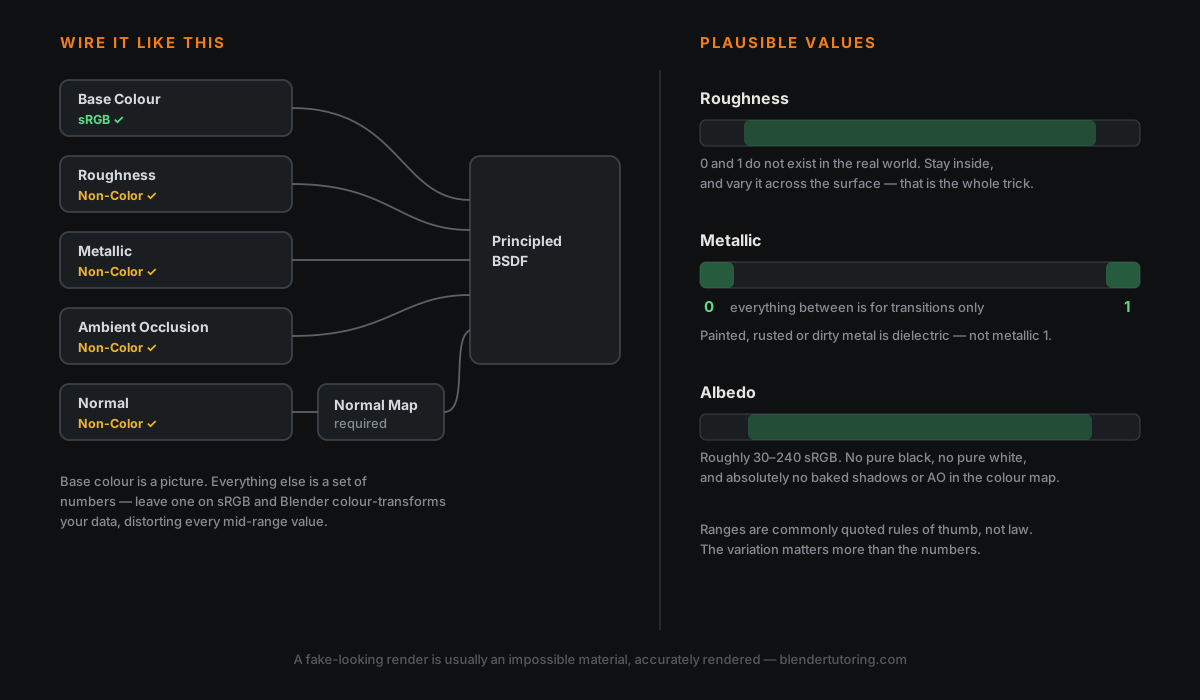
🎨 First: Your Colour Space Is Wrong
This is the most commonly cited PBR mistake in Blender and it will sabotage everything else you do.
When you plug an image into a shader, Blender needs to know whether that image is a picture or a set of numbers.
- Base Colour is a picture. It is display-referred colour, and Blender converts it into its working space. Leave it on sRGB.
- Roughness, Metallic, Normal, Height, AO are not pictures. They are data — "this pixel is 0.4 rough" — and they must be set to Non-Color.
Leave a roughness map on sRGB and Blender applies a colour transform to it, distorting every mid-range value. Your 0.5 roughness becomes something else entirely. The material will be subtly, inexplicably wrong, and no amount of tweaking the sliders will fix it because the numbers arriving at the shader are not the numbers in your file.
Click the image node, find the Colour Space dropdown, set every data map to Non-Color. If you fix one thing from this article, fix that.
(Normal maps additionally need a Normal Map node between the image and the shader. Plugged in directly, they do nothing useful.)
🪵 The Real Tell: Uniform Roughness
Here is the thing that actually makes renders look CG, and it is not a setting — it is an absence.
Nothing in the real world has one roughness value. A wooden table has varnish worn thin where elbows rest, dust in the grain, a slightly glossier patch where someone spilled something. A metal handle is polished where hands touch it and duller everywhere else. The variation is the realism.
A single flat roughness value across an entire surface reads as plastic because plastic is one of the few things that genuinely is uniform.
Two rules of thumb worth knowing, both commonly quoted and both approximate:
- Avoid 0 and 1. Nothing is perfectly smooth or perfectly rough. Staying roughly within 0.1 to 0.9 keeps you plausible.
- Most real materials sit somewhere around 0.2 to 0.8.
But the ranges matter far less than the variation. A roughness map with genuine detail in it will do more for realism than any amount of fine-tuning a single slider — and more, usually, than your colour map.
⚙️ Metallic Is Not A Slider
Metallic is close to a binary choice. A surface either is bare metal or it is not.
The values in between are not "a bit metallic" — they exist for transitions, like paint flaking off steel where both materials appear within the same pixel. Setting a plastic surface to 0.5 because it looks shiny produces something physically implausible, and it will look wrong in a way that is hard to name.
The common version of this mistake: making a whole object metallic because it is made of metal. A painted car panel is paint — dielectric. A rusted bolt is rust — dielectric. A dirty, coated or oxidised surface is usually not behaving as bare metal at all. Metallic 1 is for the exposed, bare, conductive surface and nothing else.
🌑 Albedo: No Pure Black, No Pure White
Your base colour map should not contain pure black or pure white. Neither exists as a real surface — even coal reflects some light, even fresh snow absorbs some.
Quoted safe ranges vary and the common figures are old, so treat them as rough guidance rather than law: somewhere around 30–240 in sRGB terms for non-metals, with another commonly cited range being 60–240. The principle is more useful than the numbers: stay off both ends, and avoid fully saturated colour.
One more, and it is a big one in scanned or AI-generated textures: your albedo should contain no baked lighting and no ambient occlusion. If there are shadows painted into the colour map, your renderer will light those shadows again, and the result is the muddy, flat look that no lighting setup can rescue.
🔬 The Principled BSDF Changed In 4.0
If you are following a tutorial made before Blender 4.0, the shader in it is not the shader you have.
Specular now works through IOR. The old Specular input computed its own index of refraction. Since 4.0, specular reflection and transmission are primarily driven by a single IOR input, with a separate IOR Level adjusting the amount of reflection. If a tutorial tells you to set Specular to 0.5, that control is not there any more in the form being described.
One reported consequence worth knowing: on darker base colours, people have found they need to raise IOR Level — and sometimes Sheen Weight — to get the response they expected. Also note it is no longer possible to fully switch off specular reflection through that input.
Sheen was rebuilt on a microfiber model and sits above coat and emission. It is no longer just for fuzzy cloth — it is a credible way to add a layer of dust to any material, which is a cheap and very effective realism trick.
Coat gained tint and IOR, so it is no longer only a clear lacquer.
Metallic edge tinting arrived as an artist-friendly way to control complex IOR, which is what makes gold look like gold rather than yellow chrome.
⚙️ The Checklist
- Every data map set to Non-Color. Base colour stays sRGB.
- Normal map goes through a Normal Map node.
- Roughness has variation — ideally a map, at minimum some noise.
- Roughness avoids 0 and 1.
- Metallic is 0 or 1, grey only where materials meet.
- Albedo has no pure black, no pure white, no baked shadows.
- Check it under lighting that actually describes the form before blaming the material.
Point 7 matters more than people expect. A correct material under flat lighting still looks like plastic, because you have removed every cue that would let anyone tell.
🎯 The Underlying Idea
PBR is not a look, it is a set of promises about how numbers behave. The renderer is doing physically plausible things with whatever you hand it — so when the output looks fake, the usual cause is that the input was not physically plausible in the first place.
Uniform roughness, half-metallic plastic, albedo with shadows painted in: none of those describe anything that could exist. The render is not failing. It is accurately showing you an impossible material.
Read next: Why Your Blender Render Looks Flat — the other half of why a technically fine model still does not read as real.
Materials still not landing? Book a free intro call → and bring the file.
Newsletter
Get more tips like this
Short, practical Blender guides for beginners — straight to your inbox. No spam. Unsubscribe any time.