Why Your Blender Render Looks Flat
2026-10-17
You modelled it carefully. The topology is clean, the textures are fine, and the render still looks like a product photo taken in a supermarket aisle. Everything is visible. Nothing has any form.
That is almost never a modelling problem. Flat renders are a contrast problem, and contrast is lighting.
Here is how to tell what is wrong, and the four things that are usually causing it.
🔍 The Grayscale Test
Before changing anything, take the colour away.
Drop a Hue/Saturation node into the compositor with saturation at zero, or just squint at it. Colour hides a lot — a scene can look fine in colour and collapse the moment you remove it.
What you are looking for: a clear range from dark to bright, with the eye landing somewhere deliberate. If the greyscale version is a uniform mid-grey soup, you have a lighting problem and no amount of texture work will rescue it.
This is also the single best test for a fill light that has got out of hand. Turn the fill down until the image almost looks too contrasty in greyscale, then bring it back slightly. That is usually the right level.
☀️ Cause 1: One HDRI Doing Everything
The most common setup in beginner scenes is a single HDRI and nothing else. It is also the most common reason a render looks flat.
An HDRI lights from every direction at once. That is excellent for ambient fill and reflections, and it is exactly what you do not want as your only light, because light from everywhere means shadows from nowhere.
The fix is not to delete it. Keep the HDRI, turn its strength down so it is doing ambient and reflection work, then add a real key light — an area light — to actually describe the form.
One related trap: use a genuine HDR file, not a JPG panorama. An 8-bit JPG clips its bright values at white, so the sun in it carries no more energy than the sky around it. You get even illumination and no defined shadow, which is the definition of the problem you are trying to solve.
📐 Cause 2: Your Light Is Behind The Camera
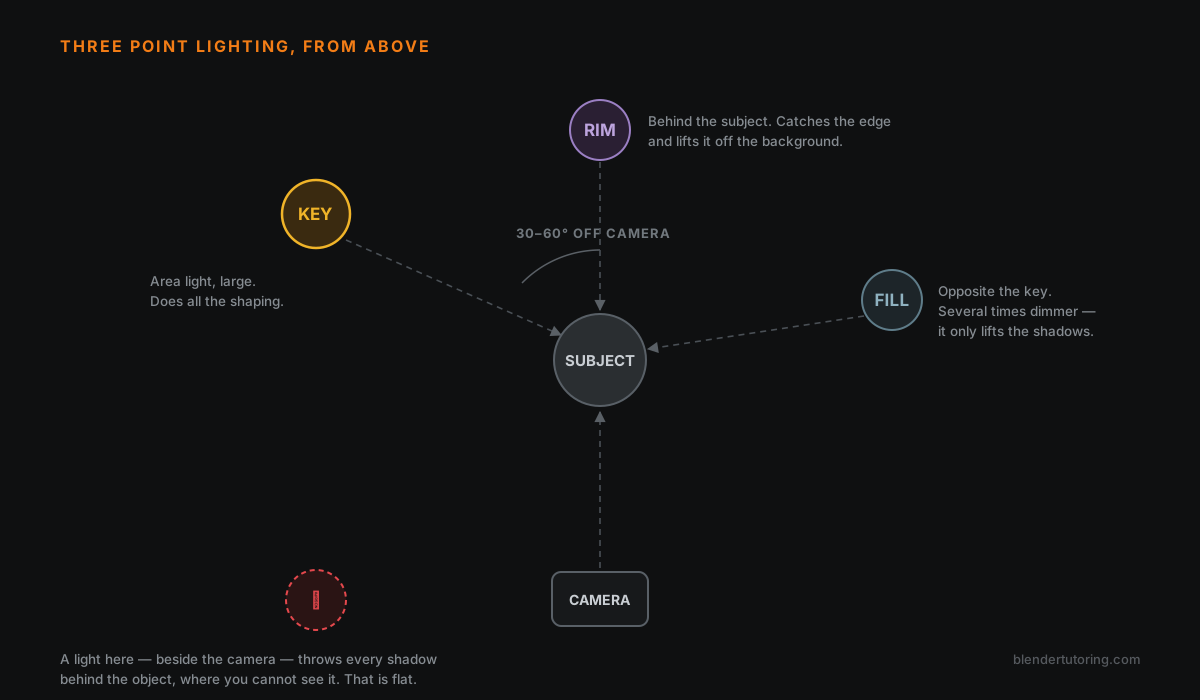
If the light comes from where the camera is, every shadow falls directly behind the object where you cannot see it. No visible shadows means no visible form.
This happens by accident constantly, because the default scene light sits roughly over the camera and the first instinct when something is too dark is to make that light brighter.
The fix: place the camera first, then move the light. Common guidance is to put your key roughly 30 to 60 degrees off the camera axis, and somewhat above. Shadows then fall across the form where you can see them, which is what reads as three-dimensionality.
Same rule for an HDRI: rotate the world so the bright part of it sits to one side of your camera rather than behind it.
🕯️ Cause 3: The Fill Is Too Strong
Three-point lighting is key, fill, and rim. The part people get wrong is the ratio.
The fill exists to stop your shadows going completely black. It does not exist to light the subject. If it is anywhere near the key in strength, you have two keys fighting each other, and the result is flat.
Put the fill broadly opposite the key, then drop it a long way down. Check in greyscale. If the form disappears, the fill is too bright or too directional.
The rim or back light sits behind the subject and catches the edge, separating it from the background. It is the cheapest way to make an object look like it occupies space rather than being pasted onto a backdrop — and it is the light beginners leave out most often.
📏 Cause 4: Your Lights Are The Wrong Size
This one is invisible until you know about it.
The size of an area light controls shadow softness. A large emitter gives a soft, gradual falloff from light to shadow. A small one gives a hard edge. The brightness is a separate setting entirely — you change the quality of the light with size, not with power.
A tiny, very bright area light gives you harsh photographic shadows. A large, dimmer one gives you the soft wrap of an overcast day or a big softbox. Neither is correct; they are different looks, and picking one deliberately is most of what lighting is.
Blender's area lights come as rectangle, ellipse and disk, which map neatly onto a stripbox, a window and a round fixture. For studio-style work, area lights are generally the right first choice over point or spot.
🎚️ Strength Is Not Exposure
A quick one that saves a lot of pain, especially in interiors.
Strength on the Background node multiplies everything the HDRI contributes — sky, sun, and reflections, together. Exposure in Colour Management changes how the final image is mapped to the screen.
If your interior is too dark, the instinct is to crank the lights. That tends to blow out the window and wreck the reflections. Raise the exposure instead, and only then adjust individual lights to taste.
Worth knowing: in EEVEE, Blender extracts a sun light from the World above a configurable threshold, so an HDRI with a bright sun in it can behave differently between engines.
🎯 A Setup That Works
Not the only one, but a reliable starting point:
- HDRI at low strength for ambient and reflections.
- Key light — area, large, 30 to 60 degrees off camera, above eye level.
- Fill opposite the key, several times dimmer. Verify in greyscale.
- Rim behind the subject, aimed to catch one edge.
- Set exposure last, in Colour Management, not by scaling the lights.
Then turn the colour off one more time and check that it still reads.
The Honest Part
Lighting is the fastest way to make ordinary modelling look good, and the fastest way to make excellent modelling look worthless. It is also the thing most self-taught artists skip, because tutorials are usually about making the object rather than photographing it.
If your portfolio pieces look flat, the model is probably not the problem. Which is worth knowing before you rebuild it for the third time.
Read next: Why Your Blender Render Is Noisy — the other thing that quietly ruins an otherwise finished image.
Want someone to look at your actual lighting setup? Book a free intro call →
Newsletter
Get more tips like this
Short, practical Blender guides for beginners — straight to your inbox. No spam. Unsubscribe any time.