10 Blender Modeling Addons Every Beginner Should Know
2026-06-18
If you've just started learning Blender, you've probably noticed it already comes packed with tools. But one of the best things about Blender is its addon ecosystem — free and paid extensions that can save you hours and make your workflow feel dramatically smoother.
Here are the 10 modeling addons beginners get the most out of, what they do, and why they matter.
🟠 The Free Built-ins — Enable These Today
These are already inside Blender. Go to Edit → Preferences → Add-ons, search by name, and check the box. Zero downloads required.
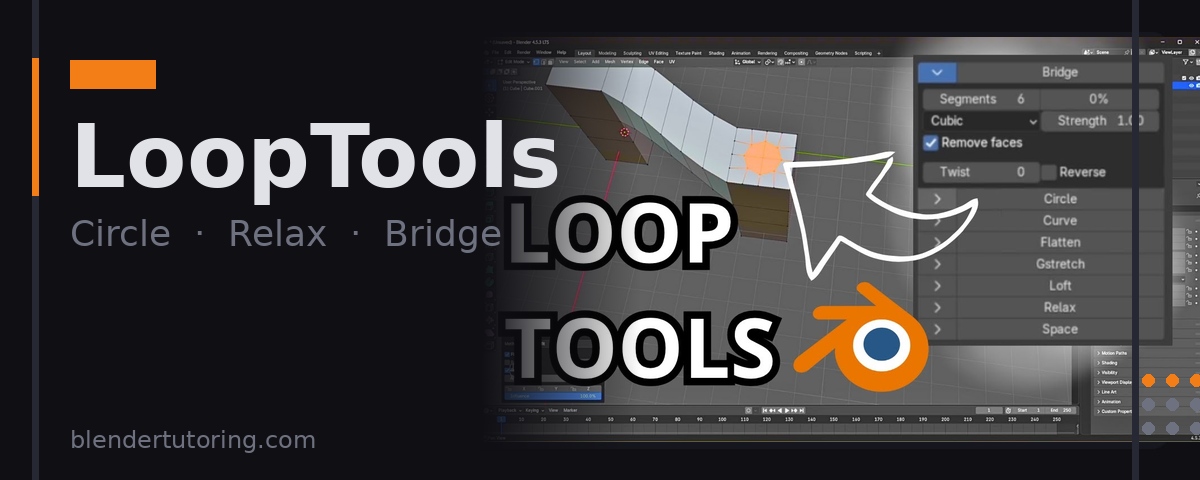
1. LoopTools
What it does: Adds a set of mesh editing tools that would otherwise take many manual steps.
| Tool | What it does |
|---|---|
| Circle | Snaps a vertex selection into a perfect circle |
| Relax | Smooths uneven geometry without changing the shape |
| Bridge | Connects two edge loops with clean geometry |
💡 Tip: Select a ring of vertices around a hole, hit Circle, and watch it snap into a perfect round opening instantly.
2. Node Wrangler
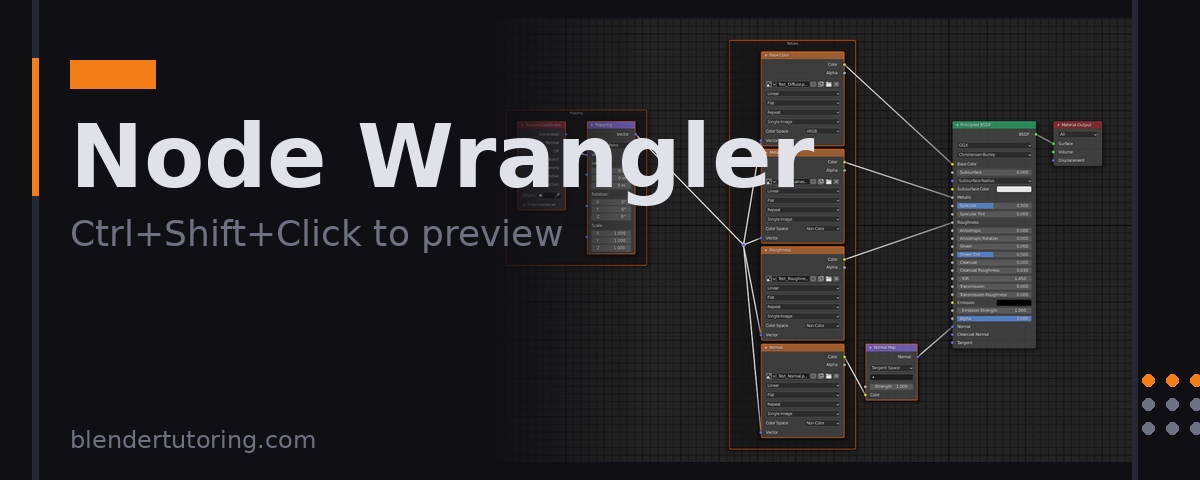
What it does: Makes the Shader Editor dramatically faster.
The single most useful shortcut it adds: Ctrl + Shift + Click any node to instantly preview it in the viewport. Without Node Wrangler you'd need to manually connect every node to the Material Output just to see it.
💡 Tip: Also adds Ctrl + T to auto-connect a texture with Mapping and Texture Coordinate nodes in one keystroke.
3. Bool Tool
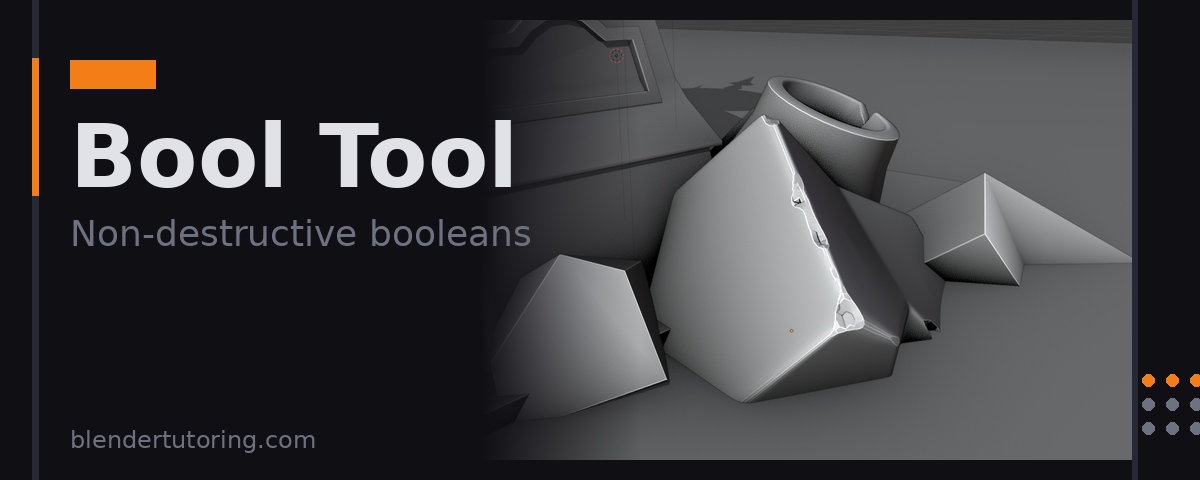
What it does: Makes boolean operations non-destructive and easy to manage.
Booleans are how you add holes to panels, cut windows into walls, or merge shapes together. Without Bool Tool, once you apply a boolean you lose the ability to edit it. Bool Tool keeps them live so you can adjust them later.
💡 Tip: Select your cutter object + your target, press Ctrl + Numpad Minus for a live difference boolean.
4. Import Images as Planes
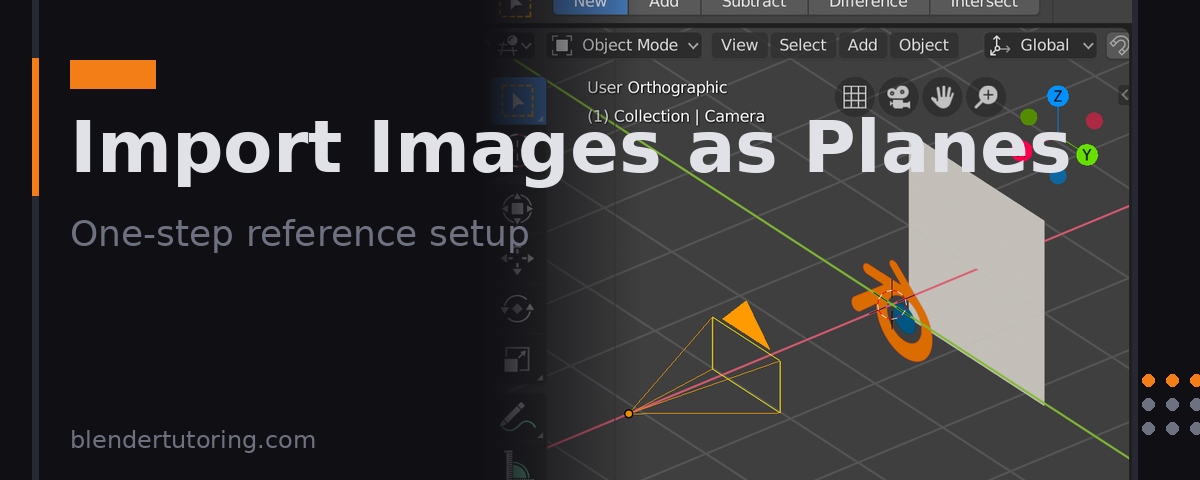
What it does: Imports a photo directly into your viewport as a flat plane — in one step.
Modeling from reference photos is one of the best habits to build early. Without this addon you'd manually create a plane, resize it, create a material, and add an image texture node. This addon does all of that in seconds.
💡 Tip: Import front and side reference photos, then position them along the X and Y axes as modeling guides.
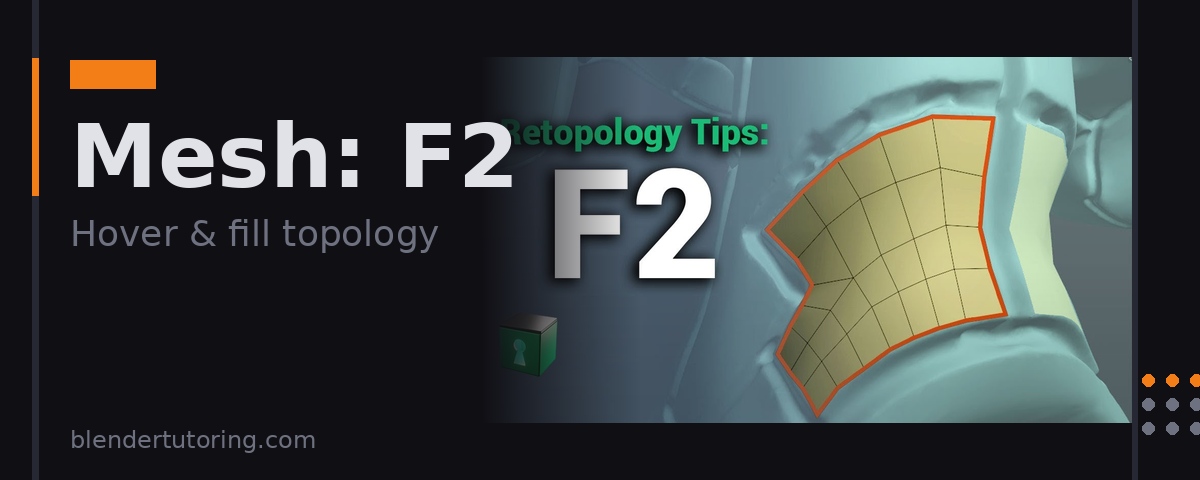
5. Mesh: F2
What it does: Extends Blender's default F key so you can fill faces one at a time by hovering near an open edge.
It figures out the correct geometry automatically. This sounds like a small thing but once you use it, going back feels painful.
💡 Tip: Works best when filling in topology row by row — hover near the last filled face and keep pressing F to continue the surface.
🟢 Free Downloads
6. BlenderKit
What it does: An asset library built into Blender's sidebar. Search and download thousands of free materials, models, and HDRIs without leaving the software.
For beginners this is huge. Instead of spending an hour trying to make a wood material look right, you grab a studio-quality one and keep moving.
💡 Tip: Filter by "Free" in the BlenderKit panel to access thousands of assets at no cost.
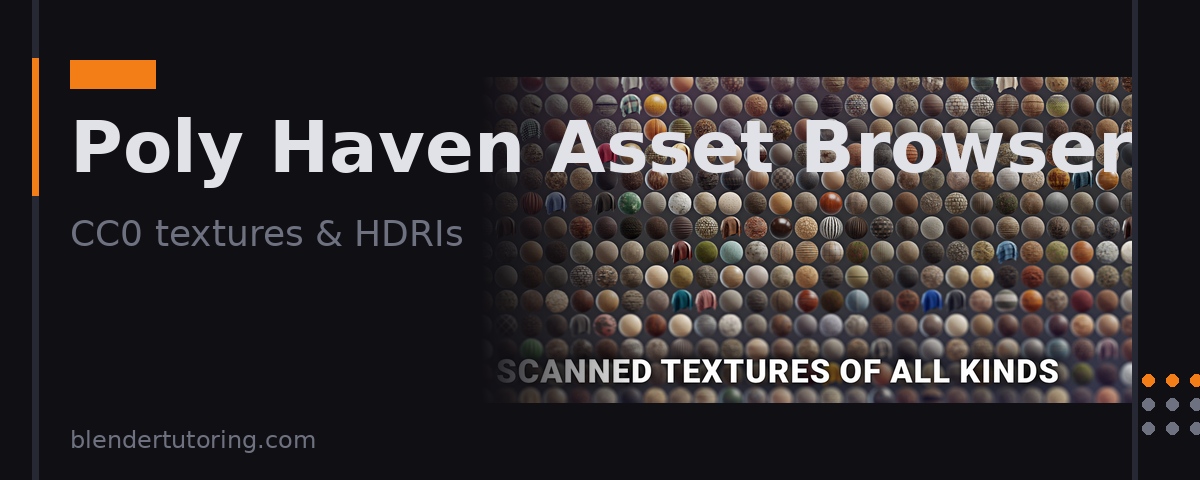
7. Poly Haven Asset Browser
What it does: Connects Blender's Asset Browser directly to Poly Haven's full library of textures, HDRIs, and 3D models.
Everything on Poly Haven is CC0 licensed — meaning you can use it in commercial projects with no strings attached.
💡 Tip: Their HDRIs alone are worth it — one-click lighting that makes renders look professional immediately.
🔴 Paid — Worth It When You're Ready
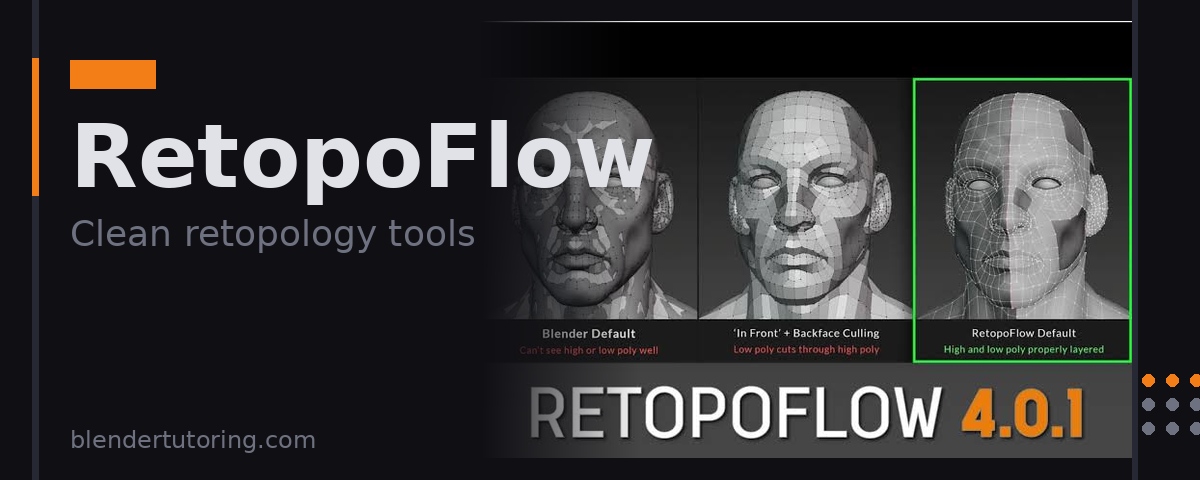
8. RetopoFlow (~$90)
What it does: Replaces Blender's clunky retopology workflow with dedicated tools that actually make sense.
Retopology is drawing clean geometry over a rough sculpt. RetopoFlow adds snap-to-surface controls, clear visual feedback, and a logical workflow.
💡 Best for: Anyone planning to do character modeling or sculpting.
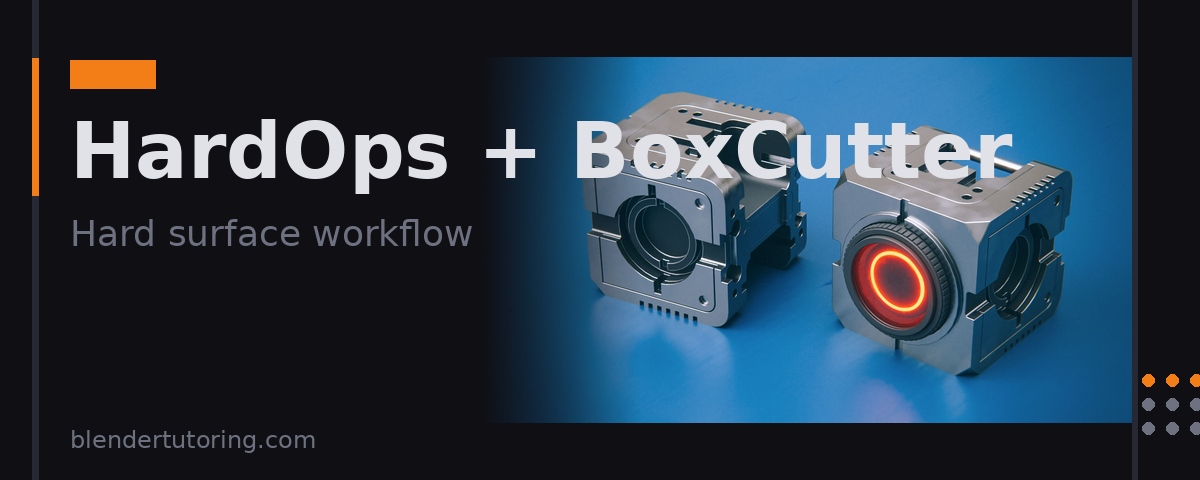
9. HardOps + BoxCutter (~$40 bundle)
What it does: HardOps accelerates hard surface modeling. BoxCutter adds an interactive boolean cutter that lets you draw cuts directly onto your mesh.
Together they make mechanical modeling — robots, vehicles, weapons, sci-fi props — significantly faster.
💡 Best for: Anyone interested in hard surface, product design, or sci-fi modeling.
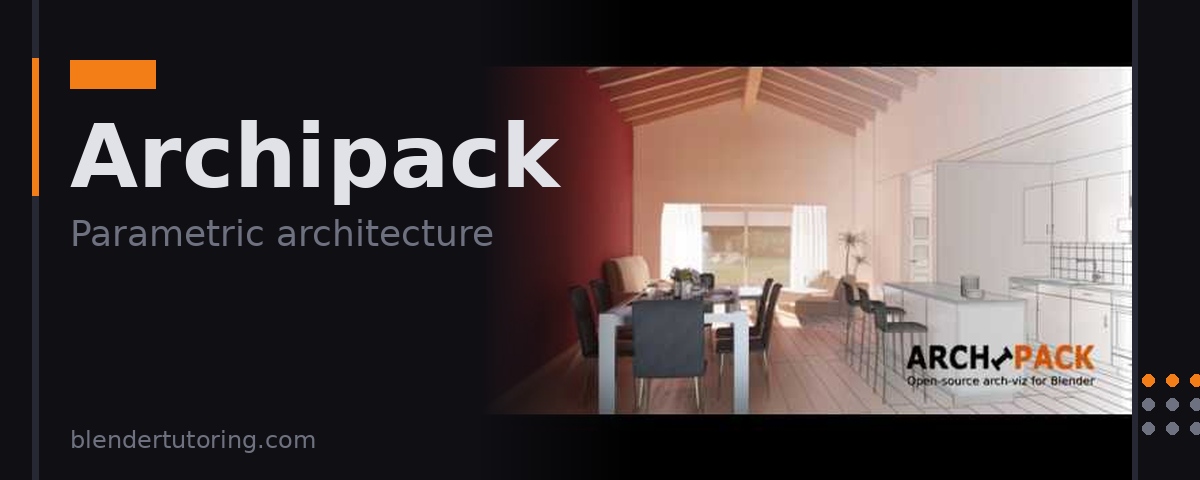
10. Archipack (Free tier / Paid)
What it does: Parametric tools for architectural modeling — walls, doors, windows, stairs, furniture. You set dimensions and it builds the geometry.
💡 Best for: Anyone interested in environments, interior design, or archviz.
Where to Start
Don't install everything at once. Follow this order:
- Enable all 5 built-ins — LoopTools, Node Wrangler, Bool Tool, Import Images as Planes, F2. Free, already in Blender, immediate impact.
- Add BlenderKit + Poly Haven — once you're working on full scenes and need quality assets fast.
- Pick one paid addon based on your focus — HardOps/BoxCutter for mechanical work, RetopoFlow for characters, Archipack for environments.
Want to learn Blender faster with someone guiding you through it? Book a 1-on-1 session →
Newsletter
Get more tips like this
Short, practical Blender guides for beginners — straight to your inbox. No spam. Unsubscribe any time.