Blender Geometry Nodes: The Three Ideas That Make It Click
2026-10-22
You follow a geometry nodes tutorial. You wire up exactly what the video wires up. The scattered rocks appear, the result looks right, and you close Blender knowing precisely as much as you did before.
Then you try to change something — scatter on a different surface, vary the size by height — and the whole thing falls apart in ways you cannot even describe.
That is not a you problem. Geometry nodes has three ideas underneath it, and almost every tutorial teaches a recipe instead of teaching those. Learn the three and the node editor stops being a magic spell you copy and starts being something you can reason about.
🔢 Idea One: A Field Is A Question, Not A Number
This is the one everything else rests on.
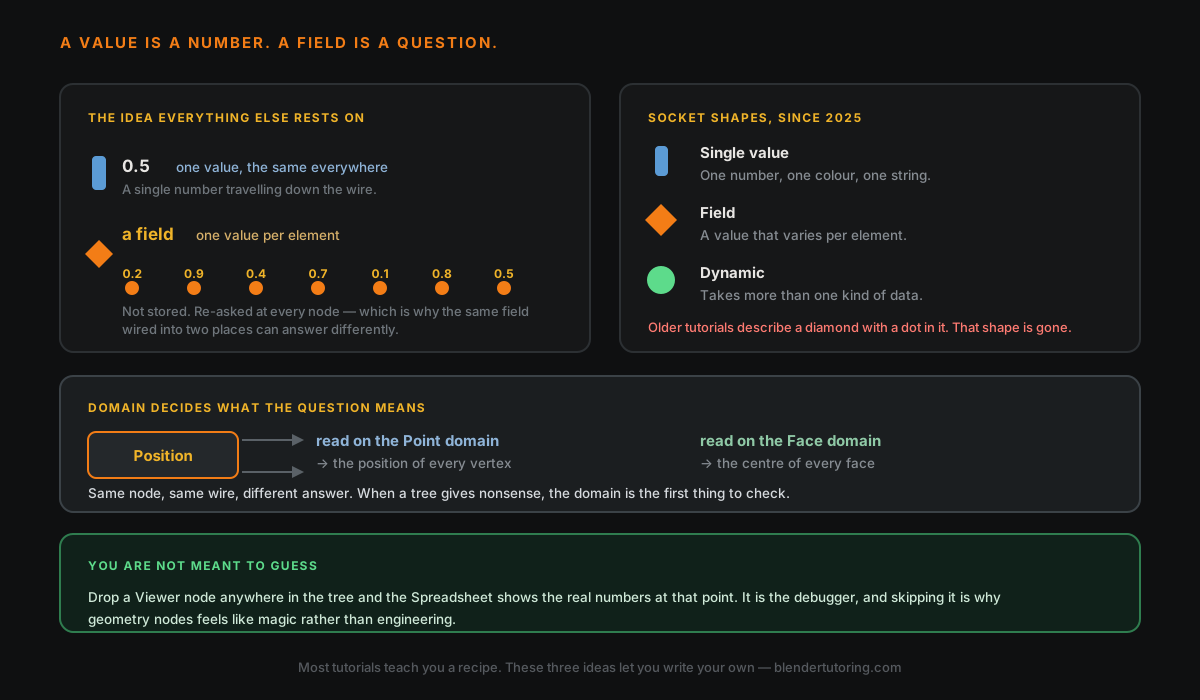
Most data in a node graph is a single value. The number 0.5 goes down the wire and it is 0.5 everywhere, for everything.
A field is different. It is not a number and it is not a stored list of numbers — it is a function, an instruction that gets evaluated separately for every element. Blender's manual calls it a value map, and compares it to a greyscale image: not one brightness, but a brightness for every pixel.
So when you plug a Random Value into Set Position, you are not sending one random number. You are sending the instruction "produce a random number", which then runs once per point. Seven points, seven different answers.
And here is the consequence that catches people, straight from the manual: because a field is a function rather than stored data, the same field wired into two different places will not necessarily give the same answer in both. It re-evaluates in each context. If you have ever wondered why your "same" random value produced two different results in one tree, that is why.
The socket shapes, and a trap in older tutorials
Blender tells you which is which by the shape of the socket:
- A bar is a single value.
- A diamond is a field.
- A circle is a dynamic socket that can carry more than one kind of data.
If you are following a tutorial made before 2025, it will describe a diamond with a dot inside it, meaning a socket that accepts a field but currently has a fixed value. That shape was retired in the 2025 socket-shape change. The concept still exists; the picture in the tutorial does not match your screen any more. This trips people up badly, because it looks like you have the wrong node rather than an old video.
🧭 Idea Two: Domain Decides What The Question Means
If idea one is what a field is, idea two is where it gets asked.
A domain is the kind of element a field runs on. Meshes have vertices, edges, faces and face corners. Curves have control points and splines. There are also instances, UVs and volumes.
Take the Position node. On the point domain it gives you the position of every vertex. On the face domain it gives you the centre of every face. Same node, same wire, completely different answer — decided not by the node but by what is downstream of it.
This is why a tree can produce confident, specific nonsense. The maths is fine. It is being asked about faces when you meant points.
When a geometry nodes setup does something inexplicable, check the domain first. It is the single most common cause, and it is invisible unless you go looking.
🔍 Idea Three: The Spreadsheet Is The Debugger
The third idea is the one that turns the first two from theory into something usable: you are not supposed to be guessing.
Drop a Viewer node anywhere in your tree, and the Spreadsheet editor shows you the actual evaluated data at that exact point — every element, every attribute, real numbers. It also previews in the viewport.
Two things worth knowing about reading it:
- The Spreadsheet only shows columns for the currently selected domain. If an attribute seems to have vanished, you are very likely looking at the wrong domain tab rather than at a broken tree.
- The Viewer picks a domain automatically where it can, and otherwise defaults to face corner for meshes and point for curves — which is itself a useful reminder of how much the domain is doing.
Working without the spreadsheet is the difference between debugging and superstition. Most people who say geometry nodes "never clicked" have never opened it.
📦 Capture Attribute, And Why Tutorials Disagree About It
Once you accept that fields are re-evaluated rather than stored, a question follows naturally: what if I want to freeze a value at a particular moment?
That is Capture Attribute. It evaluates a field at that point in the tree and stores the result on the geometry, so later nodes read the frozen value rather than re-asking the question.
The classic case: Spline Parameter only works on curves. If you want to use a curve's parameter after converting it to a mesh, capture it while it is still a curve. Afterwards the node has nothing to compute from.
The node has also changed, which is why guides on it conflict. In older versions it captured a single field. In current Blender it takes one or more items at once, and you can add and rename them. If a tutorial shows a node with one input and yours has a list, you are not doing it wrong — you are on a newer version.
🚀 A First Project That Actually Teaches The Model
Resist the sci-fi corridor generator. Build something small enough that you can see the data move:
- A grid, a Random Value, and Set Position. Move each point up by a random amount. That is idea one on screen — one instruction, many answers.
- Open the Spreadsheet and look at the positions. That is idea three, and it makes the first one concrete.
- Swap Random Value for something positional, so height depends on where a point is rather than on chance.
- Add Instance on Points and put an object at every point. Now you are working on the instance domain, which is idea two.
Four steps, and you have touched all three ideas with nothing memorised. That is a far better use of an evening than a tutorial that leaves you with a corridor and no model of how it happened — the same argument as picking your own small project after the donut.
⚠️ One Honest Warning About Tutorials Here
Geometry nodes has moved faster than almost any other part of Blender, and written guides date badly. Socket shapes changed. Capture Attribute changed. Node names have shifted across releases.
I am not going to hand you a list of every rename, because I could not verify a complete one and a half-right list is worse than none. What I will say is this: if a geometry nodes tutorial is more than a year or two old, expect the node names and the socket pictures to be wrong even where the ideas are right. Check the date before you conclude you are the problem, and check which version you are actually on.
✅ The Three Ideas
- A field is a question, not a number. It is evaluated per element, and re-evaluated in each context it is used.
- Domain decides what the question means. The same node answers differently on points, faces or instances.
- The spreadsheet is the debugger. Viewer node, real numbers, right domain tab.
Everything else in geometry nodes is vocabulary. These three are the grammar.
🎯 The Underlying Idea
Geometry nodes is not a modelling tool with a strange interface. It is a small data-processing language that happens to output geometry, and the reason recipes do not transfer is that you cannot modify a program you do not have a model of.
Which is also why it is worth the effort. A tutorial gives you one scattered-rock setup. The three ideas give you every setup you can describe — and, eventually, the much better position of being able to look at someone else's node tree and simply read it.
Be aware it is easy to build something that brings your machine to its knees, too; procedural does not mean free, and the usual performance rules still apply.
Read next: What to Make After the Blender Donut Tutorial — the same problem in a different place, and the same fix.
Geometry nodes refusing to click? Book a free intro call → and share your screen. This is one of the topics where half an hour with someone watching saves a month of guessing.
Newsletter
Get more tips like this
Short, practical Blender guides for beginners — straight to your inbox. No spam. Unsubscribe any time.