The Most Important Blender Keyboard Shortcuts for Beginners
2026-06-19
If there's one thing that separates a slow Blender workflow from a fast one, it's shortcuts. Blender is designed to be used with a keyboard — almost every action has one, and learning the essential ones early will make everything feel less clunky.
Here are the shortcuts that matter most when you're starting out.
🖱️ Viewport Navigation
These are the first ones to get into muscle memory. You'll use them every single session.
| Shortcut | What it does |
|---|---|
| Middle Mouse Button + drag | Orbit around the scene |
| Scroll wheel | Zoom in / out |
| Shift + MMB drag | Pan the view |
| Numpad 1 / 3 / 7 | Front / Right / Top view |
| Numpad 5 | Toggle perspective / orthographic |
| Numpad 0 | Camera view |
| ` (backtick) | Pie menu for all views |
| F | Focus on selected object |
💡 No numpad? Go to Edit → Preferences → Input and enable "Emulate Numpad" to use the number row instead.
✏️ Object Mode — Working With Objects
| Shortcut | What it does |
|---|---|
| G | Grab (move) |
| R | Rotate |
| S | Scale |
| G / R / S + X / Y / Z | Lock to an axis |
| G + Z | Move along Z axis only |
| Shift + Z | Move on X and Y (exclude Z) |
| Tab | Toggle Edit Mode / Object Mode |
| A | Select all |
| Alt + A | Deselect all |
| H | Hide selected |
| Alt + H | Unhide all |
| Shift + D | Duplicate |
| Ctrl + J | Join objects |
| M | Move to collection |
| X or Delete | Delete |
💡 Tip: After pressing G, R, or S — type a number to set an exact value. S + 2 scales to exactly 2x. G + Z + 1 moves exactly 1 unit up.
✂️ Edit Mode — Working With Geometry
Switch to Edit Mode with Tab, then use these:
| Shortcut | What it does |
|---|---|
| 1 / 2 / 3 | Vertex / Edge / Face select mode |
| Ctrl + R | Loop cut (scroll to add more) |
| E | Extrude |
| I | Inset faces |
| Ctrl + B | Bevel |
| K | Knife tool |
| F | Fill (create face from selected edges/verts) |
| Alt + Click edge | Select edge loop |
| Ctrl + Alt + Click | Select edge ring |
| P | Separate selection into new object |
| Ctrl + P | Parent |
| Shift + N | Recalculate normals |
| Alt + M | Merge vertices |
| Ctrl + Z | Undo |
💡 Tip: Hold Shift to add to your selection. Hold Ctrl to select shortest path between two vertices.
🎨 Shading & Materials
| Shortcut | What it does |
|---|---|
| Z | Pie menu — switch render modes |
| Z then 8 | Rendered view |
| Z then 4 | Material preview |
| Ctrl + Shift + Click (Node Wrangler) | Preview any node |
| Ctrl + T (Node Wrangler) | Add texture coordinate + mapping nodes |
💡 Tip: Install Node Wrangler (it's free and built in) to make these node shortcuts available.
🎬 Animation
| Shortcut | What it does |
|---|---|
| I | Insert keyframe |
| Space | Play / pause animation |
| Left / Right arrow | Step one frame |
| Shift + Left / Right | Jump to start / end |
| Ctrl + Left / Right | Jump between keyframes |
⚡ General Power Shortcuts
These work almost everywhere in Blender:
| Shortcut | What it does |
|---|---|
| F3 | Search any operator or function |
| N | Toggle the N-Panel (properties sidebar) |
| T | Toggle the T-Panel (tool shelf) |
| Ctrl + Z | Undo |
| Ctrl + Shift + Z | Redo |
| Ctrl + S | Save |
| F12 | Render |
| Ctrl + F12 | Render animation |
| Shift + A | Add object / node |
| Ctrl + A | Apply transforms |
💡 Tip: F3 is underrated. If you forget a shortcut, just search for what you want to do — it finds any function in Blender by name.
🧠 How to Actually Learn These
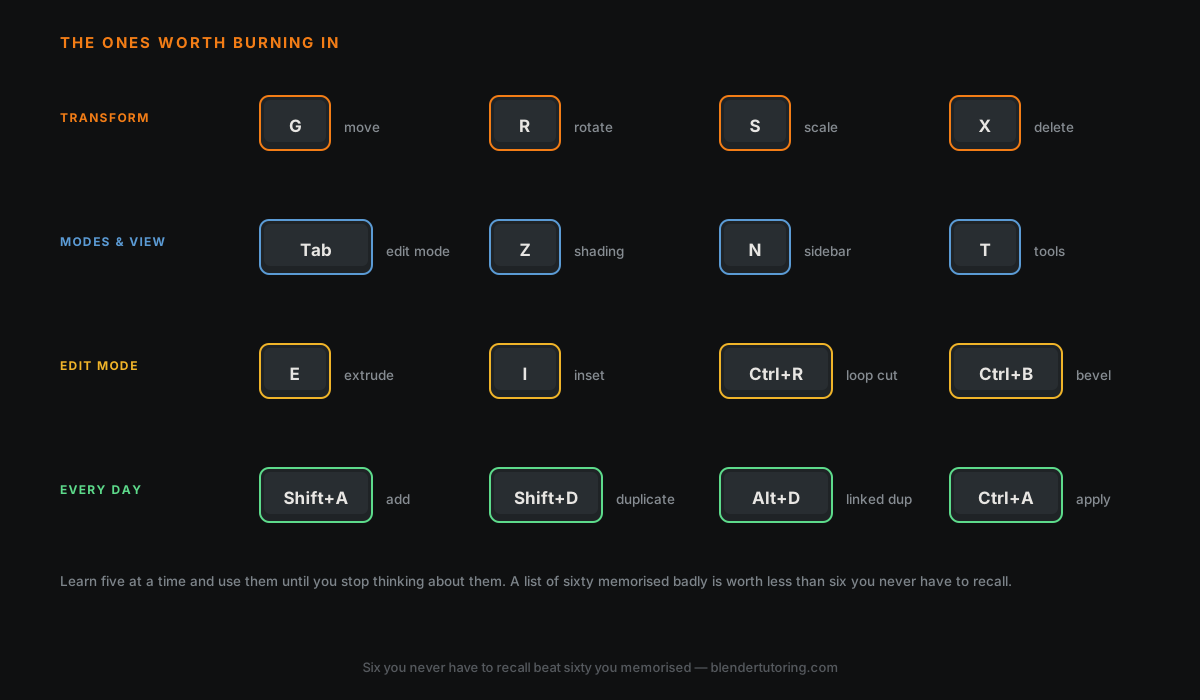
Don't try to memorise all of these at once. Here's a better approach:
- This week: Learn the navigation shortcuts and G / R / S
- Next week: Add the Edit Mode essentials — Loop Cut, Extrude, Inset
- After that: Add shortcuts as you need them, one at a time
The ones you use daily will stick automatically. The rest you can look up until they do.
Quick Reference
Bookmark this page — it works as a cheat sheet you can pull up whenever you forget a shortcut.
Learning Blender and want to move faster? Book a 1-on-1 tutoring session →
Newsletter
Get more tips like this
Short, practical Blender guides for beginners — straight to your inbox. No spam. Unsubscribe any time.