Blender FBX Export: Fixing Wrong Scale and Rotation
2026-10-22
You export a model that looks perfect in Blender. You drag the FBX into Unity or Unreal and it arrives a hundred times too big, or lying on its side, or both.
So you search for the fix, and this is where it gets genuinely annoying: every guide gives you a different magic combination of export settings, stated with total confidence, and half of them contradict each other.
They are not all wrong. They are answering for a specific Blender version, a specific engine and a specific kind of asset, and none of them says so. Which is why the useful thing to learn here is not a settings preset — it is why the disagreement exists, and the one test that settles it for your setup in about two minutes.
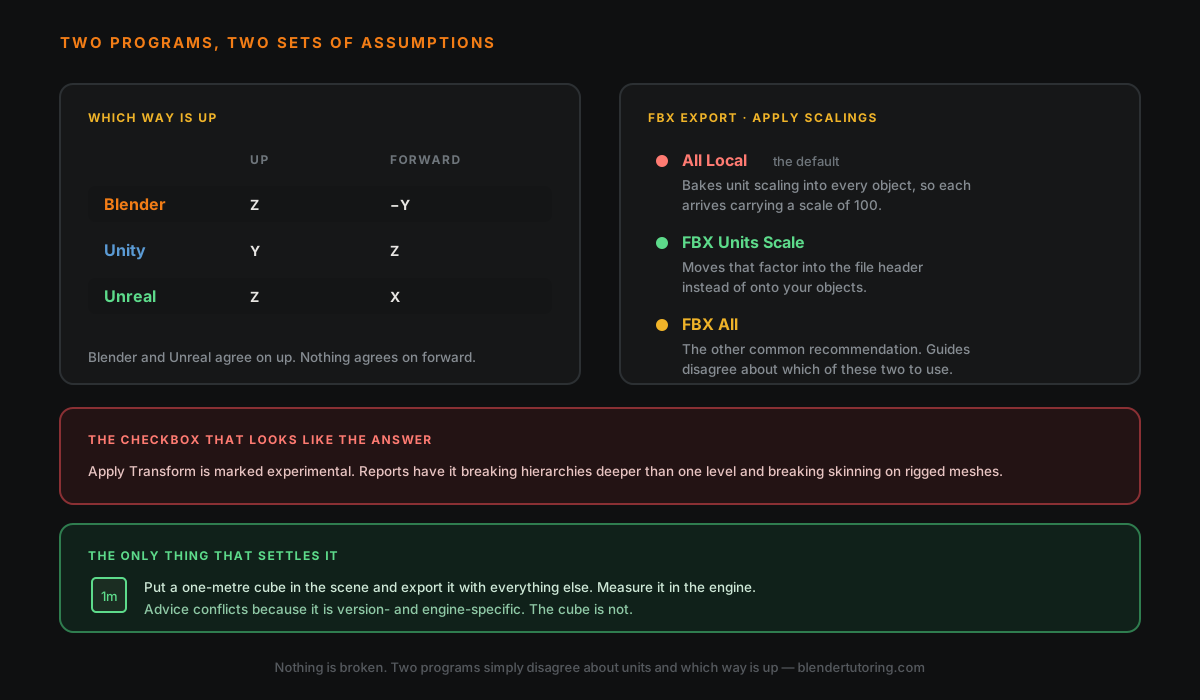
📐 Two Programs, Two Sets Of Assumptions
Nothing is broken when your model arrives wrong. Two pieces of software simply disagree, in two ways.
They disagree about which way is up. Blender treats Z as up and -Y as forward. Unity treats Y as up and Z as forward. Unreal treats Z as up and X as forward. Blender and Unreal at least agree on up; nothing agrees on forward. That disagreement is the rotation problem.
They disagree about size. Blender works in metres by default. Unreal works in centimetres. That factor of 100 has to be resolved somewhere, and the question is only where — which is the scale problem.
Every export setting you are about to meet exists to resolve one of those two disagreements. Once you see them that way the options stop being arbitrary.
📏 The Hundred-Times Problem
This is the single most common complaint, and it comes from one setting.
In the FBX exporter, under Transform, there is Apply Scalings. The default is All Local, which resolves the unit difference by baking it into each object's transform. The geometry is right, but every object in the file arrives carrying a scale of 100 — which is exactly what you see on the other side.
The alternatives — FBX Units Scale and FBX All — move that factor into the file's header instead, so your objects arrive at a sane scale.
Which of those two to use is where the guides diverge, and I am not going to pretend otherwise. Both are commonly recommended, by people who have clearly got each one working. The answer depends on your engine, your version and whether the asset is rigged.
That is not a satisfying answer, so skip to the test below, which gives you a definite one.
⚠️ The Checkbox That Looks Like The Answer
While you are in that panel you will find Apply Transform, and it sounds exactly like what you want.
Be careful with it. It is marked experimental in the exporter, and that label is doing real work. Reports on the Blender issue tracker have it breaking hierarchies deeper than one level and breaking skinning on rigged meshes — a model that exports fine as a single static prop can come apart once it has a parent or an armature.
Two honest caveats on that. Some of those reports are a few years old and behaviour may have improved, and the people who have it working on simple static meshes are not wrong either. But "experimental, known to break rigs" is a poor foundation for a pipeline. If you have an armature, leave it off and solve the scale through Apply Scalings instead.
✅ Apply Your Transforms First
Separate from any export setting: before you export, select everything and press Ctrl+A → All Transforms in Object Mode.
Unapplied scale and rotation cause a whole category of baffling behaviour, and not only on export — it is also the first thing to check when a rig deforms badly. Getting into the habit early saves you from a class of problem you will otherwise keep rediscovering.
The one exception worth knowing: do not apply scale to an armature that already has animation on it. Rescaling an animated armature rescales the keyframes with it, and you will spend longer fixing that than you saved. Sort out your scale before you animate, not after.
🔄 Getting The Rotation Right
Two approaches, and people are split on which is cleaner.
Set it at export. The FBX exporter has Forward and Up axis settings. For Unity, -Z forward, Y up is the common pairing.
Or build to the convention. Model so your object faces -Y in Blender, which is Blender's own forward. It then lands facing forward in Unity without any export gymnastics.
The second is more work up front and far less trouble later, particularly once you have dozens of assets and want them all consistent. If you are building a library rather than a one-off, pick a convention and hold to it.
🧪 The Test That Settles All Of This
Here is the part that turns the conflicting advice into a non-issue.
Put a cube in your scene, set it to exactly one metre, and export it with everything else. In the engine, select it and read its dimensions.
- Reads 1 unit in Unity, or 100 in Unreal? Your settings are right.
- Reads 100 in Unity? The unit factor is still sitting on your objects — change Apply Scalings.
- Reads 0.01? You have applied the correction twice.
- Facing the wrong way? Your axis settings or your modelling convention need the fix above, not your scale settings.
This takes two minutes, it is unambiguous, and it tells you the answer for your Blender version and your engine rather than for the version some blogger was using three years ago. Do it once when you set up a project, note down the settings that worked, and reuse them.
Keep the cube in the file. When something exports strangely six months from now, it is already there.
🧱 A Few Things Worth Doing While You Are There
- Export only what you mean to. Use Limit to Selected Objects, and restrict object types to Mesh and Armature. Exporting your cameras and lights into an engine that already has its own is just clutter.
- Name things properly before export, not after. Renaming a hundred imported assets is miserable, and studios use prefixes such as SM_ for static meshes for exactly this reason.
- Remember materials do not survive. Image textures transfer; shader node graphs do not. If the material is procedural, bake it first. That is covered properly in the Blender and Unreal piece.
- Consider glTF instead. For many non-rigged assets it is a cleaner modern format with fewer unit arguments attached. FBX persists because the whole industry already speaks it, not because it is pleasant.
✅ The Checklist
- Ctrl+A → All Transforms, except on an already-animated armature.
- Apply Scalings set to FBX Units Scale or FBX All, not the All Local default.
- Apply Transform left off if anything is rigged or parented.
- Forward and Up set for your engine, or model facing -Y and stop thinking about it.
- Limit to Selected Objects, Mesh and Armature only.
- Export the one-metre cube and measure it on the other side.
- Write down what worked and reuse it for the whole project.
🎯 The Underlying Idea
The reason this problem feels so maddening is that it presents as a bug when it is actually a disagreement, and you cannot debug a disagreement by trying settings at random.
Blender is not exporting wrongly. It is exporting according to its own conventions, and the engine is reading according to different ones. Your export settings are the translation layer between them, and the only question is where you want the conversion to happen — on the objects, in the file header, or in how you built the model in the first place.
Understand that, and the next time an asset arrives sideways you will know which of the two disagreements you are looking at before you open a single menu.
Read next: Blender and Unreal Engine: The Happy Couple — the wider picture of the pairing, and what else does not survive the trip.
Pipeline fighting you? Book a free intro call → and bring the file. Export problems are usually a two-minute fix once somebody can see your settings.
Newsletter
Get more tips like this
Short, practical Blender guides for beginners — straight to your inbox. No spam. Unsubscribe any time.