Weight Painting in Blender: Why Your Rig Deforms Badly
2026-10-19
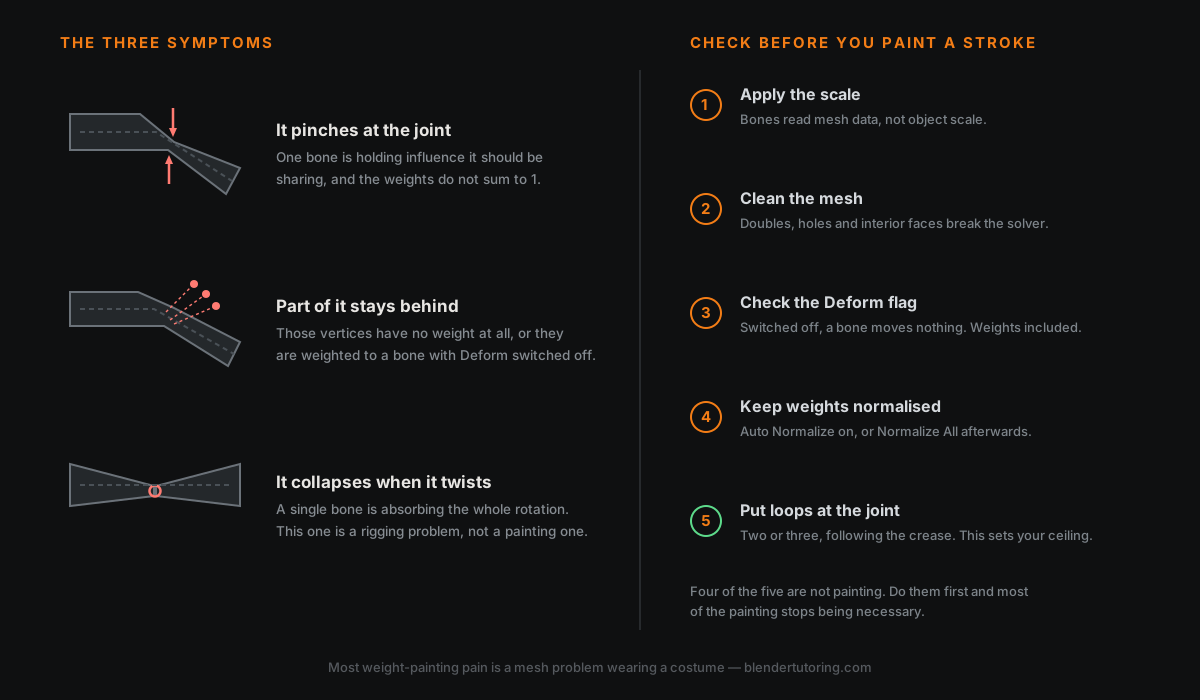
Your character bends at the elbow and something goes wrong. The surface pinches to a point. A patch of shoulder stays floating where it was. The forearm rotates and collapses in on itself like a twisted sweet wrapper.
So you open Weight Paint mode, pick up the brush, and three hours later it is broken in a different way.
Here is the thing nobody tells you early enough: most weight-painting problems are not painting problems. They are mesh problems, scale problems or normalisation problems, and brushing over them is sanding a wall with the wallpaper still on.
📏 First: Apply Your Scale
If you have scaled your character in Object Mode, the armature and the mesh now disagree about how big the world is.
Bones read the mesh data, not the object-level scale sitting on top of it. The symptom is deformation that looks roughly right but behaves strangely — influence falling off over the wrong distance, automatic weights producing nonsense, or the whole thing simply refusing to bind.
Ctrl+A, Apply Scale, on the mesh and on the armature. Do it before you parent anything. If you have already parented, clear the parent, apply the scale, and parent again — it is faster than any amount of repainting.
It is also one of the two usual suspects behind the error in the next section.
🧹 Then: Clean The Mesh
When you parent with automatic weights and Blender replies Bone Heat Weighting: failed to find solution for one or more bones, it is not being obtuse. The solver builds a mathematical description of your surface, and that description requires the surface to actually be a surface.
Things that stop it being one:
- Doubled vertices. Select all in Edit Mode, then Merge by Distance with a small threshold.
- Non-manifold geometry. Select ‣ Select All by Trait ‣ Non Manifold. Anything that lights up is a suspect — holes, edges shared by three faces, stray floating geometry.
- Interior faces. Select ‣ Select All by Trait ‣ Interior Faces finds faces accidentally created inside the mesh rather than on its surface. These are invisible in the viewport and perfectly capable of breaking the bind.
- Bones fully enclosed inside geometry, or mesh parts that are disconnected from everything else.
Community troubleshooting guides generally put bad geometry at the top of the list for this error, with unapplied scale close behind. I would treat that ordering as experience rather than measurement — but as a checking order it is a good one, because both are quick to rule out.
One more that costs nothing: delete the existing vertex groups before you retry. Leftover weight data from a previous attempt confuses the result more often than you would expect.
🚫 Check The Deform Flag
This one wastes entire evenings.
A bone with Deform switched off moves nothing. Not a little — nothing. It does not matter how carefully you painted, how red the weights are, or how correct the vertex group name is. The weights are sitting there doing nothing at all.
Control bones, IK targets and pole targets are supposed to have Deform off. The problem is when it is off on a bone that should be deforming, usually because it was duplicated from a control bone.
Bone Properties, Deform panel, check the box is ticked. If a limb is completely ignoring the rig, check this before you check anything else.
🔢 Keep The Weights Normalised
This is the invisible one, and it explains a large share of pinching.
Every vertex should have its deforming influences add up to 1.0. If the upper arm holds 1.0 at a vertex and you then paint 0.5 of forearm onto it, that vertex is now being pulled by 1.5 of total influence. It will not move a sensible amount, and nothing in the viewport tells you why.
Blender gives you two tools, and the manual is clear about what each does:
- Auto Normalize, in the Weight Paint tool options, keeps deforming vertex groups summing to one as you paint. Turn it on and most of this problem disappears before it starts.
- Normalize All, under the Weights menu, fixes it after the fact: it makes each vertex's weights sum to one across all groups, leaving locked groups untouched.
Note that plain Normalize is a different and narrower thing — it works on the active group only, scaling it so the highest value becomes 1.0 while keeping the relative values. Useful, but not the fix for this.
Two more from the same menu worth knowing:
- Mirror Vertex Group — when one side of the character bends correctly and the other does not, this is usually the whole answer.
- Show Zero Weights, a display option rather than a tool, makes unweighted vertices obvious instead of letting you hunt for them by posing.
🧱 Put Loops At The Joint
A joint with one edge loop through it cannot bend well. There is nothing to distribute the rotation across, so the surface has to crease, and no weight map rescues geometry that has nowhere to go.
Two or three loops through each major joint, following the direction of the crease, costs almost nothing and does more for your deformation than hours of painting. This is also the main practical reason quad topology matters where things deform — edge loops are what you are relying on, and triangles interrupt them.
If you take one thing from this article, take this: the mesh sets your ceiling. Painting decides how close to that ceiling you get.
🍬 The Candy Wrapper Is A Different Problem
The collapsing twist at the wrist or the shoulder is worth separating out, because it is the one failure here that is genuinely not fixable by painting.
It happens because of how the deformation is calculated. Blender's default is linear blend skinning, which is fast, does not bulge, and is prone to exactly this collapse when a bone rotates far around its own axis. Switching on Preserve Volume on the Armature modifier changes the method to dual quaternion skinning, which holds the volume much better — and in exchange tends to bulge around joints, with its own discontinuity near 180 degrees from the rest pose.
So it is a trade, not an upgrade. Try it, look at the shoulders.
The catch that catches everyone: Preserve Volume is a modifier setting, not mesh data. FBX and glTF do not carry it, and most engines skin linearly regardless. Turn it on, admire the fixed wrist, export to Unreal, and the candy wrapper is back — because the engine never knew about it.
If the rig is going into an engine, the robust fix is structural: add a twist bone between the forearm and the hand, give it a Copy Rotation constraint reading the hand's roll, and weight the forearm so the twist is shared along its length instead of landing on one joint. Corrective shape keys are the other common approach. Both survive export, because both are real geometry and real bones rather than a viewport setting.
🔁 The Workflow That Actually Works
Do not paint a rig from scratch. Nobody does.
- Parent with automatic weights. It gets you most of the way in one click.
- Pose the rig into its worst positions. Arm fully up, elbow fully bent, head turned hard. Problems only exist in poses.
- Fix what breaks, in that pose. You can weight paint while posed, and you should — you need to see the deformation you are correcting.
- Use Smooth before you use the brush. A great deal of pinching is just a hard weight boundary, and smoothing the group is faster and better than hand-feathering it.
- Re-pose and check again. Fixing an elbow often moves the problem to the forearm.
The brush is the last tool you reach for, not the first.
🎮 If It Is Going Into An Engine
Engines limit how many bones can influence a single vertex, and Blender does not — so a mesh that deforms perfectly in Blender can arrive in Unreal or Unity subtly wrong.
The standard move is Weights ‣ Limit Total with the limit set to 4, followed by Normalize All to repair the sums that trimming just broke. Run it before export, and re-check the worst poses afterwards.
Worth being accurate about the number, though, because it is repeated as law and it is not. Four is a long-standing convention rather than a universal hard limit: Unity exposes it as a project-level Skin Weights setting with several options, and Unreal has historically supported up to eight. Blender's own FBX exporter defaults to limiting influences but can be set otherwise. Four is a safe default and a bad assumption — check what your target actually uses.
✅ The Checklist
- Scale applied on mesh and armature, before parenting.
- Mesh clean — merged by distance, no non-manifold geometry, no interior faces.
- Deform ticked on every bone that should move the mesh.
- Auto Normalize on while painting, Normalize All when finished.
- Edge loops at every joint that bends.
- Automatic weights first, then pose, then correct.
- Smooth before brushing.
- Limit Total to your engine's real number, then normalise again.
Items 1, 2, 3 and 5 are not painting. Do them first and a surprising amount of the painting stops being necessary.
🎯 The Underlying Idea
Weight painting has a bad reputation because it is usually the stage where every earlier shortcut becomes visible at once. Unapplied scale, a messy bind, missing loops at the elbow — none of them hurt while you were modelling. They all arrive together the moment the character moves.
Which is why the fix is so often upstream of the brush. The rig is not refusing to work. It is reporting, accurately, on the mesh it was given.
Read next: Quads vs Triangles in Blender: What Actually Matters — the topology half of this, and why joints are the one place the rule is real.
Rig fighting you? Book a free intro call → and bring the file — deformation problems are much faster to diagnose with the mesh in front of us.
Newsletter
Get more tips like this
Short, practical Blender guides for beginners — straight to your inbox. No spam. Unsubscribe any time.