Blender Shading Artifacts: Why Your Model Has Black Patches
2026-10-19
You hit Shade Smooth and your clean model develops dark smudges across the curves. Or one face renders solid black. Or a bevel you were pleased with grows a grey band down its length.
Nothing about the geometry looks wrong. You delete faces and rebuild them and the smudge comes back somewhere else.
The frustrating part is that there are about six separate causes for this, they produce symptoms that look alike, and most advice online picks one and presents it as the answer. So you apply a fix for a problem you do not have, and move on none the wiser.
Here they are in the order worth checking, cheapest first.
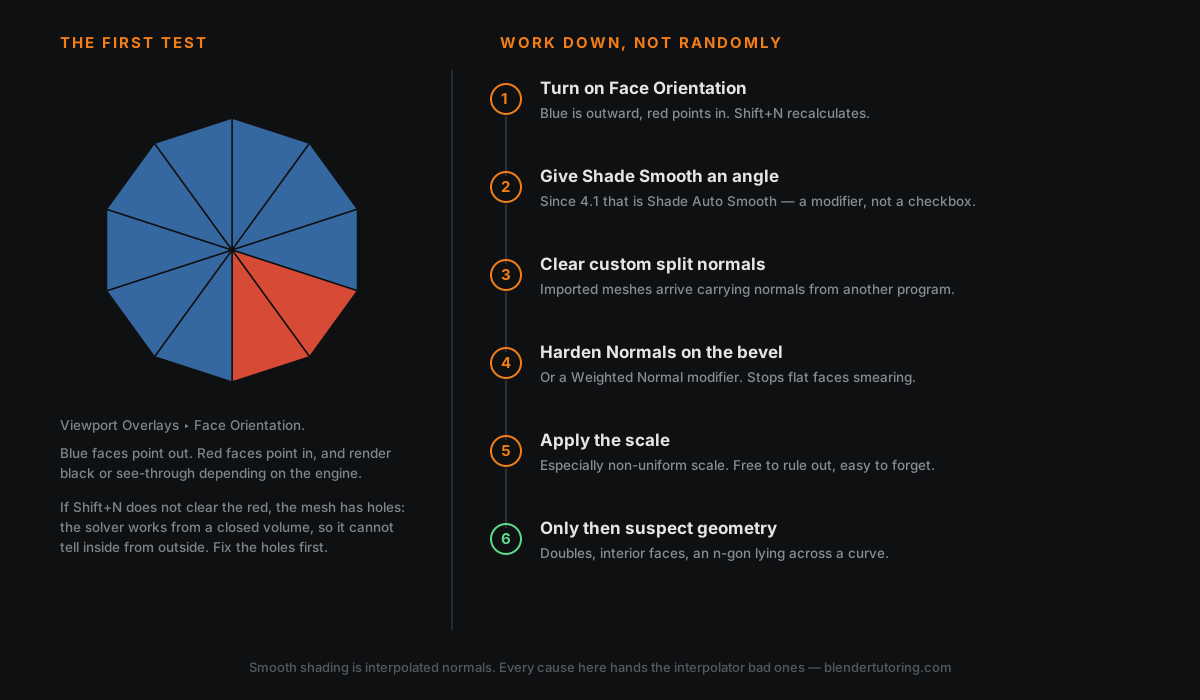
🧭 First: Which Way Are The Faces Pointing?
Open the Viewport Overlays dropdown in the top right of the 3D viewport and tick Face Orientation.
Your model turns blue. Blue means the face points outward, which is correct. Any face pointing inward turns red, and a red face renders black, see-through or strangely lit depending on the engine.
The fix is usually one shortcut. In Edit Mode, select everything with A, then Shift+N for Recalculate Outside. The full normals menu is on Alt+N, which also has Flip and Recalculate Inside if a particular model wants them.
If recalculating does not clear the red, stop and read this bit, because it is the part most tutorials skip. Recalculate Outside works by reasoning about a closed volume — it figures out which side is "outside" and points everything that way. If your mesh has holes, it has no reliable outside to reason about, and the operation produces nonsense.
So when Shift+N fails, the real problem is not normals. It is holes. Select ‣ Select All by Trait ‣ Non Manifold, see what lights up, close it, then recalculate again.
🔺 Shade Smooth Has No Idea Where Your Hard Edges Are
Plain Shade Smooth smooths everything, including the ninety-degree corners you wanted to stay crisp. The result is that soft, melted, vaguely dented look on what should be a hard-surface object.
What you want is smoothing up to an angle — smooth the curves, leave the corners sharp.
This is where a lot of people get stuck, and it is not their fault. It changed in Blender 4.1. Before then, Auto Smooth was a checkbox in Object Data Properties with an angle next to it. It is gone. Every tutorial made before 4.1 tells you to tick a box that is no longer there, and there are a great many of those tutorials.
The current equivalent is Object ‣ Shade Auto Smooth, which does not edit the mesh directly — it adds a Smooth by Angle modifier, pinned to the end of your modifier stack. The angle you used to set in the mesh data is now a setting on that modifier.
Two things worth knowing about the new arrangement:
- Shade Smooth removes the Smooth by Angle modifier, and so does Shade Flat. If you auto-smoothed something and then hit Shade Smooth to "refresh" it, you just threw the angle away.
- Because it is a modifier rather than mesh data, it does not come along with linked duplicates the way the old setting did. You copy it to each object.
The change was not universally loved when it landed, and the forum threads about it are long. But it is the system now, and knowing it is a modifier rather than a checkbox saves a genuinely baffling half hour.
👻 The Mesh May Be Carrying Someone Else's Normals
If the face orientation is correct and the smoothing is set up properly and it still looks wrong, the mesh may have custom split normals baked into it.
These are per-face-corner normals stored on the mesh that override what the geometry would otherwise produce. They are a legitimate feature — they are how you fake soft foliage or clean up a game asset deliberately. The problem is when you did not put them there.
They arrive most often on imported models. An FBX or Collada file from another program can carry normals that made sense in that program and do not here. One commonly reported example: the same character downloaded from Mixamo imports cleanly as FBX but arrives with broken custom normals as Collada.
The fix is in Object Data Properties ‣ Geometry Data ‣ Clear Custom Split Normals Data. One button.
The caveat matters: clearing it resets the mesh to its raw smoothing, driven by sharp edges and angle. If somebody authored those normals deliberately, you have just deleted their work. On your own untouched model it is safe. On an asset you bought or downloaded, look before you clear.
🔨 Bevels Smear Unless You Tell Them Not To
A bevel on a hard-surface object, under smooth shading, commonly produces a soft grey gradient bleeding from the bevel across the flat face beside it. The flat face should be flat. It is being dragged into the curve.
Two standard fixes, and they do much the same job:
- Harden Normals, a checkbox in the Bevel modifier, used together with smooth shading.
- The Weighted Normal modifier, which weights each vertex normal by face area so large flat faces dominate small bevel faces. Its Keep Sharp option is worth trying when you still get jagged edges.
There is also Clamp Overlap, on by default in the Bevel modifier, which stops a bevel eating further into the mesh than there is room for. Leave it on. People turn it off chasing an artifact and get torn geometry instead — if the bevel is overlapping, the width is too high or the supporting geometry is too tight, and that is the thing to fix.
📐 Apply The Scale
Check the N-panel. If your object's scale is not 1, 1, 1 — especially if it is non-uniform, like 1, 1, 2.4 — apply it with Ctrl+A ‣ Scale in Object Mode.
This is worth ruling out early because it costs nothing and it is invisible until it bites. Modifiers behave oddly on unapplied scale, bevel widths come out uneven, and shading can go with them.
I will be honest about the limits of what I can tell you here: the exact mechanism by which non-uniform scale degrades shading is not something I found cleanly documented, and I would rather say so than invent an explanation. What is well established is the practical rule — apply your scale before you trust your shading or your modifiers, and before you export anything.
Unapplied scale is also the first thing to check when a rig deforms badly. It causes an unreasonable share of unrelated-looking problems.
🕳️ Now You Can Blame The Geometry
Only once the five above are ruled out is the mesh itself the likely suspect. The usual offenders:
- Doubled vertices. Select all, Merge by Distance. Two vertices in the same place give you two normals fighting over one point.
- Interior faces. Select ‣ Select All by Trait ‣ Interior Faces. Invisible from outside, perfectly capable of ruining the shading around them.
- N-gons across a curve. An n-gon on a flat panel is harmless. An n-gon spanning a curved surface has no good answer for how to shade itself, and it shows. This is the real version of the quads-versus-triangles rule — the shape of the face matters where the surface bends, and barely matters where it does not.
- Extremely thin or zero-area faces, which produce meaningless normals.
🎛️ If It Survives All Six, It Might Not Be The Mesh
Worth a glance before you start over: a normal map plugged in with the wrong colour space produces its own species of strange shading, and it is not a geometry problem at all.
Data maps must be set to Non-Color, and normal maps need a Normal Map node between the image and the shader. That is a different article's territory, but it is worth checking before you rebuild a model that was fine all along.
✅ The Order
- Face Orientation overlay. Red faces, Shift+N. Red that will not clear means holes, not normals.
- Shade Auto Smooth, and remember it is a modifier now.
- Clear Custom Split Normals Data — carefully, on imports.
- Harden Normals or Weighted Normal if bevels are smearing.
- Apply the scale.
- Then merge by distance, hunt interior faces, and look at your n-gons.
Working down that list beats trying things at random, which is what most of us do for the first year.
🎯 The Underlying Idea
Smooth shading is not a surface property. It is an interpolation: Blender takes the normals at each corner of a face and blends between them across the face to fake a curve that the geometry does not actually have.
Every cause in this article is a different way of handing that interpolation bad normals. Flipped faces give it normals pointing the wrong way. Missing angle control gives it normals that blend across corners that should be hard. Custom split normals give it someone else's answer. A bevel without hardening lets tiny faces outvote big ones. Doubles give it two answers for one point.
Once you see the problem that way, the six fixes stop being a list to memorise and start being obvious — because you are always asking the same question. What is wrong with the normals arriving at this face, and which step put them there?
Read next: Why Your Blender Materials Look Like Plastic — for when the shading is correct and the surface still does not convince.
Stuck on one that will not clear? Book a free intro call → and bring the file. Shading bugs are usually a two-minute diagnosis with the mesh in front of us, and an afternoon alone.
Newsletter
Get more tips like this
Short, practical Blender guides for beginners — straight to your inbox. No spam. Unsubscribe any time.