Cycles vs EEVEE: Which Blender Render Engine Should You Use?
2026-08-15
Blender ships with two render engines, offers no guidance on which to use, and quietly defaults you into one of them. So you render something, it looks wrong, and you have no idea whether you chose badly or did something wrong.
Here's the short version, then the details.
💡 The one-line answer: EEVEE is fast and approximates light. Cycles is slow and simulates it. Beginners should work in EEVEE and render finals in Cycles until they have a reason not to.
⚖️ What Actually Separates Them
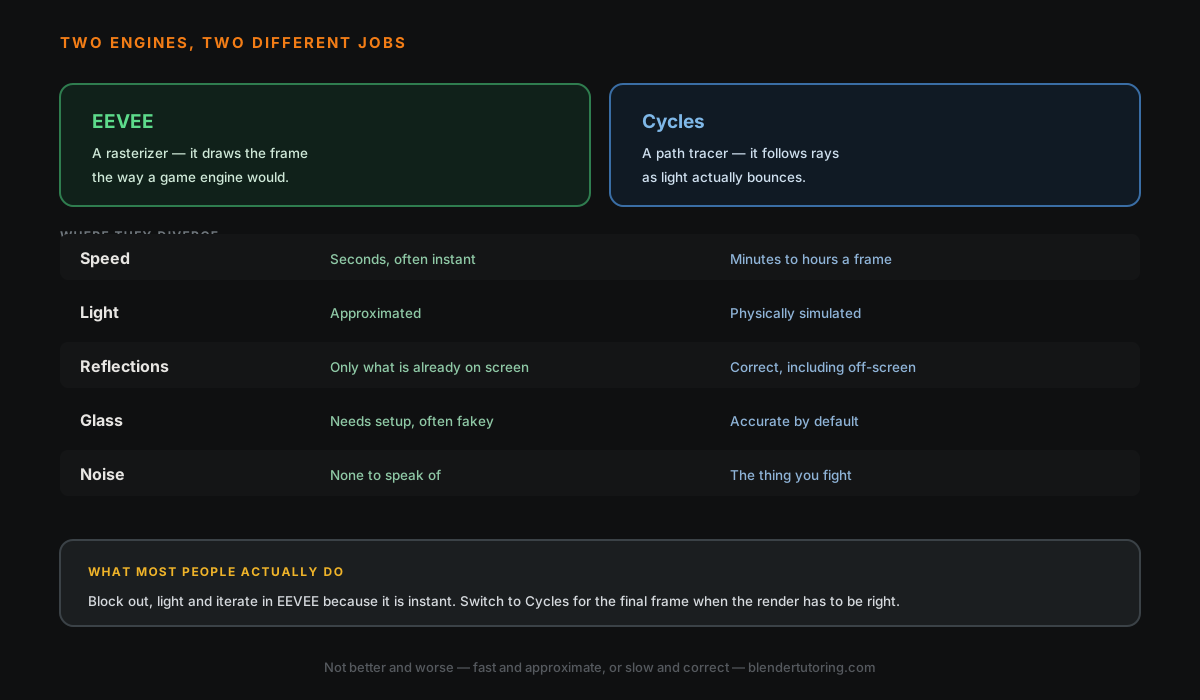
Cycles is a path tracer. It fires rays from the camera and follows them as they bounce around your scene, which is roughly how light behaves in reality. That's why it handles reflections, refraction, and bounced colour without you doing anything special — and why it takes so long.
EEVEE is a rasterizer, closer to how a video game draws a frame. It approximates the same effects with clever shortcuts, which is why it renders in real time and why some of those effects break in ways that look bizarre until you know the cause.
| EEVEE | Cycles | |
|---|---|---|
| Speed | Seconds, often instant | Minutes to hours per frame |
| Light behaviour | Approximated | Physically simulated |
| Reflections | Only what's already on screen | Correct, including off-screen |
| Glass and refraction | Needs setup, often fakey | Accurate by default |
| Soft shadows, bounced colour | Approximated | Accurate by default |
| Noise (grain) | None | Yes — needs samples or denoising |
| Best at | Stylized work, animation, iteration | Photoreal stills, product, archviz |
🟢 When EEVEE Is the Right Choice
- Stylized or illustrative work where you're art-directing the light rather than simulating it
- Animation, where Cycles' per-frame cost multiplies by hundreds of frames
- Any time you're still deciding — composition, layout, blocking
- Modest hardware, where Cycles is painful
EEVEE's real superpower isn't the final image, it's the feedback loop. Changing a light and seeing the result instantly teaches you more about lighting in an afternoon than a week of waiting on Cycles renders.
🔵 When Cycles Earns the Wait
- Photorealism is the goal
- Glass, liquids, or metal are central to the shot
- Interiors, where nearly all the light is bounced light
- A single hero image you'll actually show people
😤 The Things That Confuse Everyone
"My EEVEE reflections are missing objects." EEVEE largely reflects what's already visible on screen, so anything behind the camera or off-frame simply isn't there to reflect. That's not a bug, it's the shortcut. Blender 4.2 rebuilt EEVEE with raytracing options that improve this considerably, so check your version before assuming you're stuck.
"My glass is black or weird in EEVEE." Transparency and refraction need explicit settings in EEVEE that Cycles handles for free. If glass matters to the shot, that's a strong hint toward Cycles.
"My Cycles render is grainy." That's sampling noise, and it's normal. Raise the sample count, and make sure denoising is enabled — modern Blender ships with a very good denoiser and it does more for render quality per second than almost any other setting.
"Cycles is unbearably slow." Check that it's actually using your graphics card. In Preferences, set your Cycles render device, then set the render itself to GPU. A lot of people suffer through CPU rendering for months without realising.
💡 Switching engines is a dropdown in Render Properties, not a commitment. You can flip between them mid-project.
🔁 The Workflow Most Professionals Actually Use
They don't pick one. They model, light, and iterate in EEVEE because the feedback is instant, then switch to Cycles for the final render and accept the wait once.
Materials mostly carry over between the two, though not always identically — which is why it pays to do a test Cycles render early rather than discovering the difference the night before a deadline.
The Part That Isn't a Settings Problem
Most "bad render" problems turn out not to be engine problems at all. They're lighting problems, or material problems, or a camera at an unflattering angle — and no amount of extra samples fixes those.
That's the kind of thing that's genuinely hard to diagnose from a tutorial, because it depends on your specific scene. It's also the fastest thing to fix with someone looking over your shoulder.
Read next: UV Unwrapping in Blender, Without the Panic — because a great render of a badly textured model is still a badly textured model.
Rendering something and can't tell why it looks off? Book a free intro call →
Newsletter
Get more tips like this
Short, practical Blender guides for beginners — straight to your inbox. No spam. Unsubscribe any time.