Blender Running Slow? Viewport Lag, Freezes and Fixes
2026-10-21
Blender has started dragging. You search for a fix and get the same list everyone gets: turn on Simplify, lower your subdivisions, buy more RAM.
Some of that will help. But "Blender is slow" describes at least three different problems with three different causes, and the generic list only fixes one of them. If your Blender locks up solid for five seconds every couple of minutes, no amount of lowering subdivision levels will touch it — because that is not a scene complexity problem at all.
So before you change a single setting, work out which kind of slow you have.
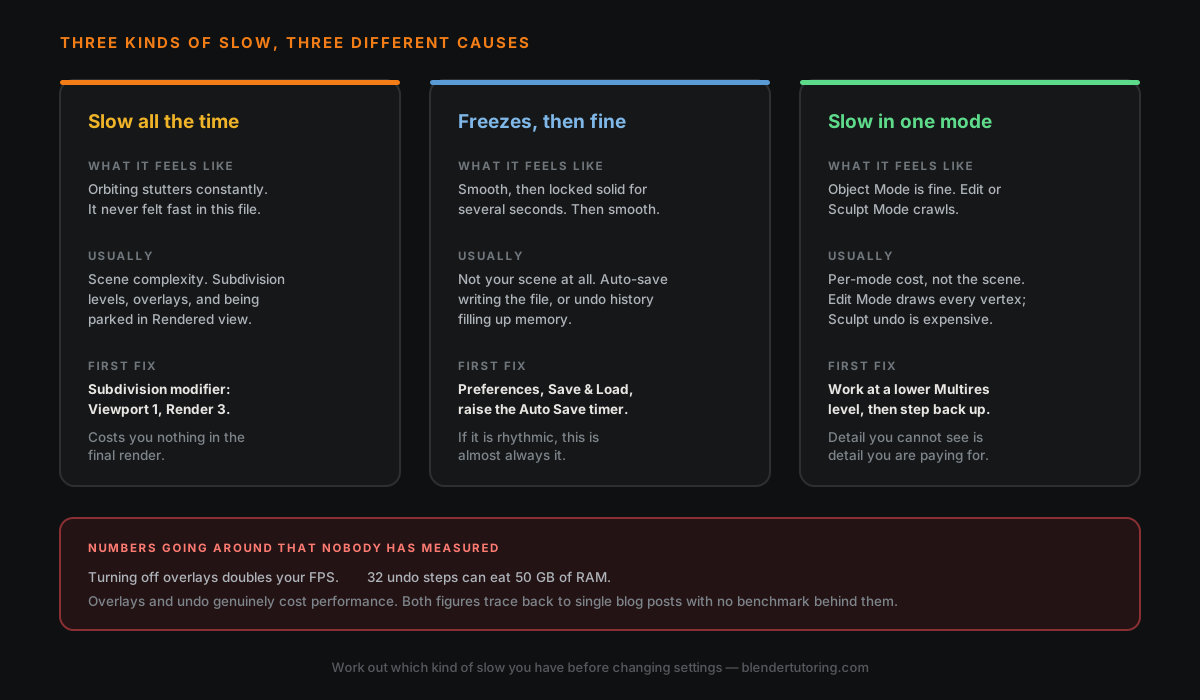
🐌 Kind One: Slow All The Time
The viewport stutters whenever you orbit. It has never felt fast in this file. This is the one the generic advice is actually about, and the fixes are real.
Subdivision: viewport and render are separate numbers
The Subdivision Surface modifier has two levels — Viewport and Render — and most people set both high without noticing there are two.
Set Viewport to 1 and leave Render at 2 or 3. You keep the smooth final result and stop paying for it while you work. This is the single highest-value change on the list and it costs you nothing in the output.
Simplify, for when it is the whole scene
Render Properties ‣ Simplify applies a cap across everything at once, rather than modifier by modifier. Set Max Subdivision low for the viewport while leaving the render value high.
There is also a Texture Limit there, and it is worth knowing what it does and does not do. It helps the rendered viewport, but Blender still has to load the full texture before it can limit it — so if your problem is a slow file open or memory pressure from 4K textures, this will disappoint you. Actually resizing the textures is a separate and more permanent fix.
You are probably sitting in the wrong shading mode
Rendered view is a continuous render. Material Preview is cheaper but still shading everything. Solid mode costs a fraction of either.
Model in Solid. Drop into Material Preview when you need to check something. Live in Rendered view only while lighting. A lot of "Blender is slow" is Blender faithfully rendering your scene over and over while you move a vertex.
Overlays are not free
Every overlay is extra drawing — wireframes, vertex display, statistics, and the Face Orientation overlay from the shading-artifact checklist. Shift+Alt+Z toggles them all off.
This genuinely helps in dense scenes. How much, I will come back to.
⏸️ Kind Two: It Freezes, Then It Is Fine
This is the one the generic lists miss, and it is the most satisfying to fix.
Symptom: Blender is perfectly smooth. Then it locks completely for a few seconds. Then it is smooth again. And it happens on something close to a rhythm.
That rhythm is the clue, and it is almost always auto-save. Blender writes a recovery copy of your file at an interval — a couple of minutes by default — and in a heavy scene writing that file takes real time, during which the interface does nothing at all.
Go to Preferences ‣ Save & Load ‣ Auto Save and raise the interval, or switch it off if you are disciplined about Ctrl+S. I would raise it rather than disable it. The freeze is annoying; losing an afternoon's work is worse.
The other candidate here is undo memory. Blender keeps a stack of previous states, and in sculpt mode especially those states are large. Preferences ‣ System ‣ Memory & Limits ‣ Undo Steps defaults to 32. Lowering it to 16 or 8 reduces memory pressure, at the cost of how far back you can step.
🎭 Kind Three: Slow Only In One Mode
Object Mode is fine. Edit Mode crawls. Or sculpting feels like dragging a brush through treacle while everything else is responsive.
This is per-mode cost, not scene cost, so scene-wide settings will not help much.
Edit Mode has to draw every vertex, edge and face as interactive geometry — a far heavier job than drawing the same mesh as a solid surface. If Edit Mode is unusable, the mesh is too dense to edit comfortably at that level, and the fix is to work on it before subdivision rather than after.
Sculpt Mode has the undo problem above in its sharpest form. The practical move is the Multiresolution modifier: sculpt the big forms at a low level, step up for detail. Detail you cannot see at the current zoom is detail you are paying for continuously.
👁️ The Three Hide Buttons Do Different Things
Worth knowing, because people reach for the weakest one.
- The eye icon (or H) hides a collection in the viewport. Cheapest to toggle, but the data is still there.
- The monitor icon disables it in all viewports. It is hidden in the Outliner by default — turn it on via the filter dropdown.
- The checkbox excludes the collection from the view layer entirely. This is the one that frees the most, because the contents stop being evaluated rather than just stop being drawn.
If you are working on one building in a city scene, exclude everything else. It is dramatically more effective than hiding it.
🔢 Two Numbers Going Around That Nobody Has Measured
Being straight with you about where the advice gets shaky.
You will see it claimed that turning off overlays doubles your FPS, and that 32 undo steps can consume 50+ GB of RAM. I went looking for the evidence behind both. Each traces back to a single blog post with no benchmark attached.
Both settings cost real performance and both are worth adjusting. But I am not going to repeat a multiplier that nobody has measured, because you would then use it to decide how to spend your afternoon. Change the setting, look at your own viewport, keep what helps.
🧰 When It Is The Scene, Not The Settings
If you have been through all of the above and it is still slow, the scene may simply be too heavy, and settings cannot rescue it.
- Duplicate with Alt+D, not Shift+D, for anything repeated. A linked duplicate shares the underlying mesh data instead of copying it. A hundred Shift+D trees are a hundred meshes; a hundred Alt+D trees are one mesh drawn a hundred times.
- Decimate or remesh scanned and sculpted assets before building scenes out of them. A photogrammetry rock at full density is not a prop, it is a liability.
- Check your actual polycount in the statistics overlay before assuming the problem is Blender.
And the honest hardware note: viewport performance leans on your GPU, while scene size and undo lean on RAM. 16 GB is a workable baseline and 32 GB is comfortable for heavy scenes — but I would exhaust every item above before spending money, because most slow Blender files are slow for reasons that cost nothing to fix.
✅ The Order
- Which kind of slow is it? Constant, rhythmic, or mode-specific.
- Constant — Subdivision Viewport to 1, shading to Solid, overlays off.
- Rhythmic — auto-save interval, then undo steps.
- Mode-specific — Multires level, or a lighter base mesh.
- Still slow — exclude collections from the view layer, Alt+D your duplicates, check the real polycount.
- Only then consider hardware.
🎯 The Underlying Idea
Blender is not one program with one speed. The viewport, the file writer, the undo stack and the mode you are in are separate systems with separate costs, and each can stall independently of the others.
That is why the generic list disappoints so many people. It is a list of fixes for the first system, handed to someone whose problem is in the second. Match the fix to the symptom and most of this is a two-minute change.
And note that none of this is about your final render being slow — that is a different problem with different causes. A file can be miserable to work in and render quickly, or glide along in the viewport and take six hours to output. They are worth diagnosing separately.
Read next: Cycles vs EEVEE: Which Blender Render Engine Should You Use? — the engine choice drives what your viewport costs to draw in the first place.
If Blender is unusable on your machine and you cannot work out why, book a free intro call → and open the file while we talk. It is usually visible in about a minute.
Newsletter
Get more tips like this
Short, practical Blender guides for beginners — straight to your inbox. No spam. Unsubscribe any time.