Blender Texture Not Showing: Magenta, Grey, or Nothing at All
2026-10-25
Your texture is loaded. You can see it in the file browser. The object is still grey.
This is the most common thing to go wrong in Blender, and the reason it costs people an entire evening is that five completely different problems all produce "the texture isn't showing." They look nothing alike once you know what you are looking at, and they take between one click and twenty minutes to fix.
So the useful skill is not knowing a fix. It is reading the symptom.
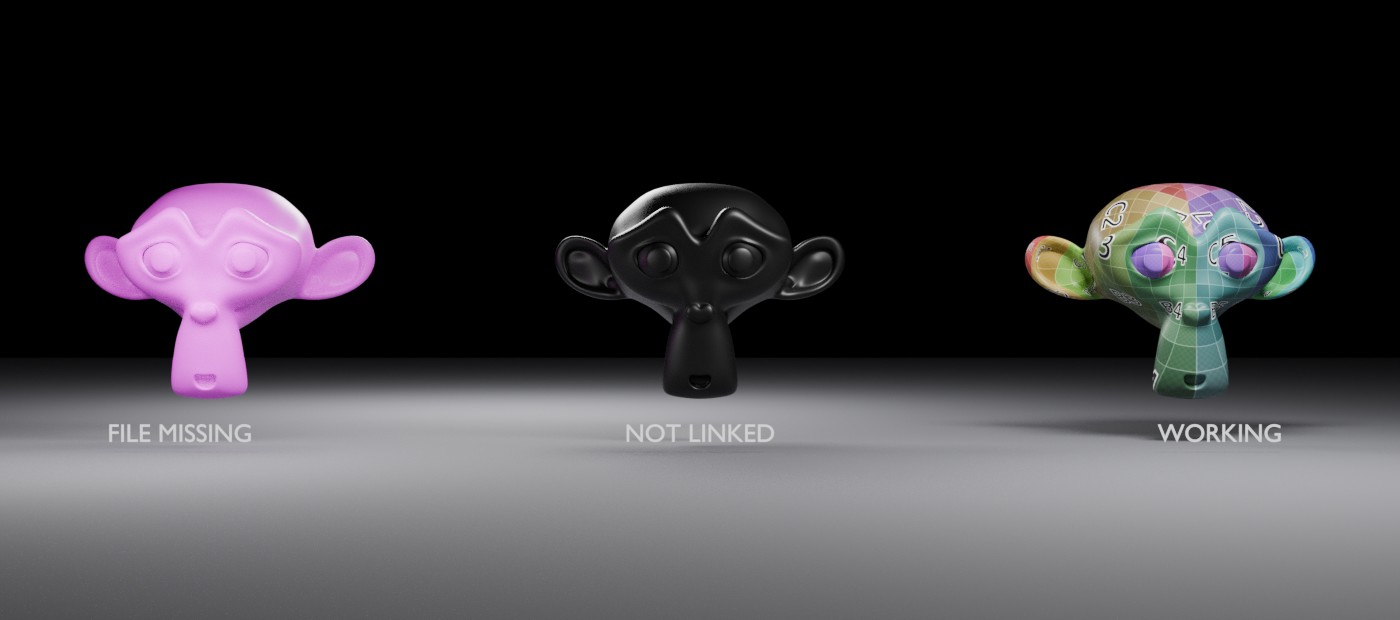
Those are three real renders, not illustrations. Same model, same light, same material setup. The magenta one is Blender's actual output when an image datablock points at a file that is not there — I broke the path on purpose rather than painting the colour in.
Here is the whole decision tree before we go through it properly.
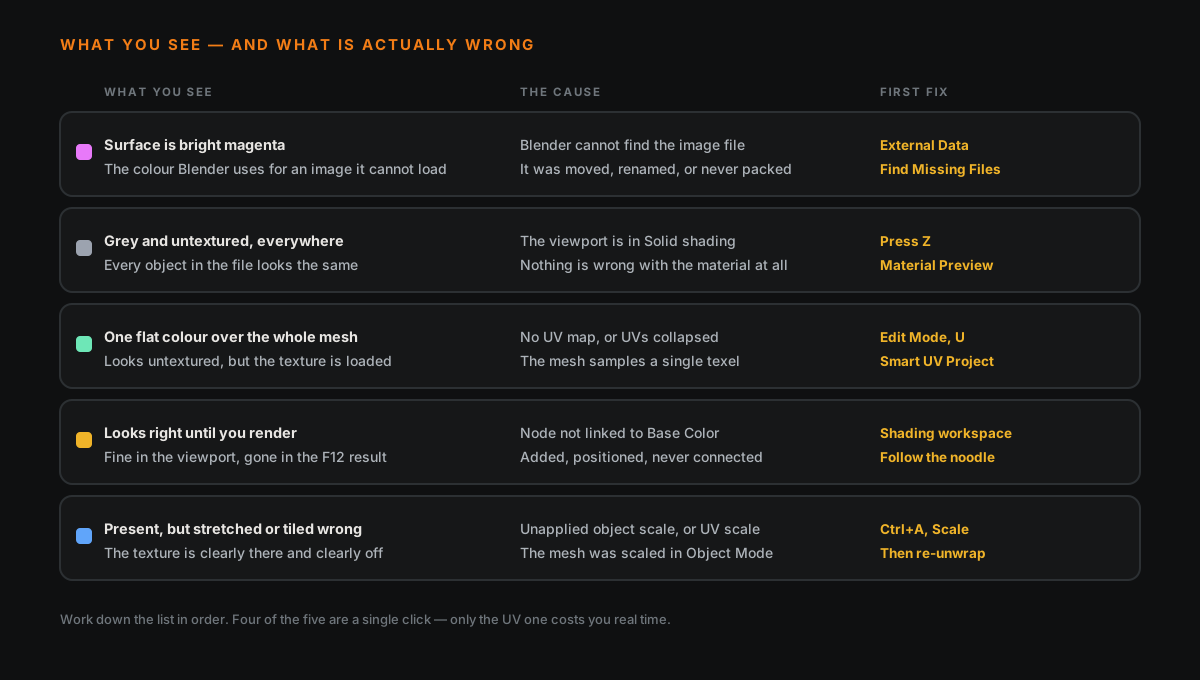
🟣 Magenta: Blender Cannot Find The File
Magenta is not a material. It is Blender telling you that an image datablock exists, something is asking for its pixels, and the file is not where the .blend says it is.
Almost always one of three things happened:
- You moved or renamed the texture after linking it
- You moved the .blend and the path was relative
- Someone sent you the .blend without the textures
The fix: File ▸ External Data ▸ Find Missing Files, then point it at the folder the textures live in. Blender will search it recursively and relink everything it recognises in one pass.
The fix that prevents it happening again: File ▸ External Data ▸ Automatically Pack Resources. That writes the images into the .blend itself. The file gets bigger and it is absolutely worth it — a packed .blend is one file you can email, and it cannot lose its textures.
If you are sending work to someone else, pack it. Every time. The magenta screenshot is the most common thing a student sends me after receiving an asset from a colleague.
⬜ Grey Everywhere: You Are In Solid Shading
If nothing in the file is textured — not just the one object — the material is almost certainly fine and you are looking at the viewport wrong.
Solid shading mode does not draw materials. That is its job. It is fast because it ignores them.
The fix: press Z, choose Material Preview. Or click the third sphere icon at the top right of the viewport.
This sounds too obvious to be worth a section. It is the single most common cause in this article by a wide margin, it catches experienced users coming back to Blender after a break, and it costs one keystroke. Check it first, always, before you open the shader editor. (More keys worth having in your hands.)
🟩 One Flat Colour: The UVs Are The Problem
This is the sneaky one, because the texture is loaded and the node is connected. The surface just comes back as a single even colour, and your eye reads that as "untextured."
What has happened is that the mesh has no usable UV map, or every UV coordinate sits on the same spot. The mesh dutifully samples one pixel of the image and paints the entire surface with it.
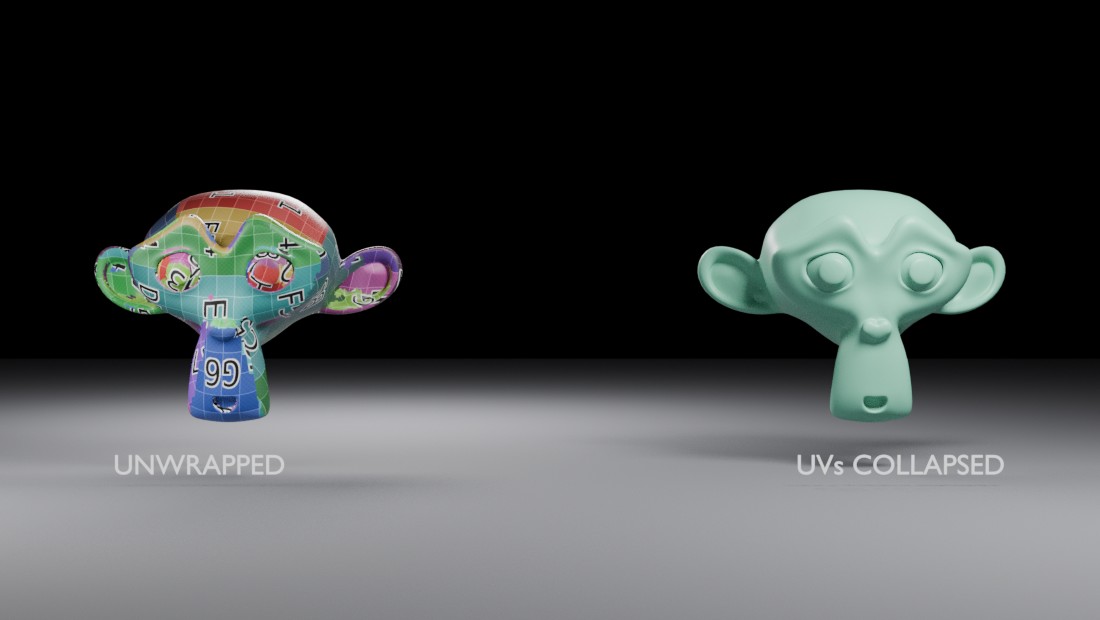
Both of those are the same image texture, the same material, the same object. The right-hand one has its UVs collapsed to a point. There is no hint in the render that UVs are the issue — it simply looks like a plain green material, which is exactly why people go hunting in the shader editor instead.
How to confirm it in five seconds: open the UV Editor, enter Edit Mode, select all. If you see your mesh laid out flat, the UVs are fine and your problem is elsewhere. If you see nothing, or a single point, you have found it.
The fix: in Edit Mode, select all with A, press U, choose Smart UV Project. That is not a good unwrap and it is not meant to be — it is a diagnostic that gets the texture visible so you can confirm the rest of the chain works. Then go and unwrap it properly, with seams you chose.
Generated and imported meshes are the usual suspects here. Anything that arrived as an STL has no UVs at all, because the format does not carry them.
🟡 Fine In The Viewport, Gone In The Render
When the texture survives Material Preview but vanishes on F12, the shading chain is broken somewhere that only the renderer cares about. Four things to check, in this order:
1. Is the node actually connected? Adding an Image Texture node and loading an image into it does nothing on its own. Its Color output has to reach Base Color on the Principled BSDF. The number of times the node is sitting there unlinked, two inches from the socket, is remarkable — mine included.
2. Is the object using the material slot you think? An object can carry several slots, with different faces assigned to each. If the faces you are looking at are assigned to slot 2 and you edited slot 1, everything you did was correct and went nowhere.
3. Is the image in the right colour space? A base colour map must be sRGB. A roughness, metallic or normal map must be Non-Color. Getting this backwards does not make the texture disappear, but it makes it come back washed out or strangely dark, and people often read that as "not working." It is also a common reason materials end up looking like plastic.
4. Are you rendering in the engine you set it up in? A small number of nodes behave differently between EEVEE and Cycles. If the material was built and previewed in one and rendered in the other, that gap is worth knowing about — the differences that actually matter are here.
🔵 It Is There, But Stretched
Different problem, and worth separating because the fix people reach for does not work.
Unwrapping happens on the mesh data. Object scale happens on top of it. So if you scaled the object non-uniformly in Object Mode after unwrapping — squashed it on one axis, say — the surface stretches in world space while the UVs stay exactly where they were. The texture stretches with the surface.
The fix is two steps, and the first one alone will not do it. Apply the scale with Ctrl+A ▸ Scale so the object's dimensions live in the mesh rather than in a transform, then re-unwrap. Applying scale on its own does not move a single UV.
The same unapplied scale causes trouble the moment the asset leaves Blender, which is why wrong scale and rotation on FBX export is its own article.
🧰 The Thirty-Second Check
In the order that finds it fastest:
- Press Z, choose Material Preview. If it appears, you were in Solid shading. Done.
- Is it magenta? The file is missing. External Data ▸ Find Missing Files.
- Is it one flat colour? Open the UV Editor and check whether an unwrap exists.
- Open the Shading workspace. Follow the noodle from the Image Texture node to Base Color with your eyes. Confirm it arrives.
- Check the material slot the selected faces are actually assigned to.
Four of those five are a single click. Only the UV one costs real time, and it is the only one of the five that is a genuine modelling problem rather than a wrong switch.
🎯 Why This One Eats Evenings
Most Blender problems announce their own category. A black patch on a surface is clearly a shading problem. A noisy render is clearly a sampling problem. You at least know which part of the program to open.
"The texture isn't showing" tells you nothing. It is the same sentence whether the cause is a viewport toggle, a broken file path, a missing unwrap, or an unplugged socket — and those live in four different editors. So people pick one and dig, usually the shader editor, usually the wrong one, and the actual answer was a keystroke in a different window the whole time.
Read the symptom first. The colour on the screen has already told you which of the five it is.
Read next: UV Unwrapping in Blender, Without the Panic — if the answer turned out to be the UVs, this is the part that takes actual skill rather than a click.
Stuck on one that is not on this list? Book a free intro call → and share your screen. Nearly every texture problem is findable in a couple of minutes once someone else is looking at the node tree with you.
Newsletter
Get more tips like this
Short, practical Blender guides for beginners — straight to your inbox. No spam. Unsubscribe any time.