Blender for Beginners: The Order to Learn It In
2026-10-25
There is no shortage of Blender tutorials. That is the problem.
A beginner's real difficulty is not finding instruction, it is sequencing it — knowing which of the four hundred things Blender does you are supposed to care about in week one, and which you can safely ignore until month six. Most people solve this by watching whatever the algorithm serves them, which is why so many get three months in able to make a donut and nothing else.
This is the order I teach it in. It assumes you have never opened Blender, and it assumes you have a job, so it is built around a few hours a week rather than a bootcamp.
Download this guide as a PDF → — the whole thing, formatted to print, including the 30-day plan and the troubleshooting table. No email required.
🧭 What Blender Actually Is
Blender is a free, open-source 3D creation suite. Free is not a trial, a student tier, or a watermarked export. It is GPL-licensed software you can use commercially, forever, without paying anyone. Work you make in it is yours.
What it covers: modelling, sculpting, UV unwrapping, texturing, rigging, animation, physics simulation, rendering, compositing, motion tracking and video editing.
That breadth is the single biggest reason beginners drown. You are not supposed to learn all of it. Almost every professional Blender user is good at two or three of those and knows roughly nothing about the rest. Pick a direction early — game assets, product renders, animation — and let the other departments stay closed.
⬇️ Which Version To Install
Two choices on the download page: the latest release, and an LTS.
For learning, take the LTS. It gets two years of fixes, it does not change under you mid-project, and — much more useful than either of those — the tutorials you find will still match what is on your screen. Half of all beginner confusion is a video showing a button that moved two versions ago.
Install the latest release later, when you have a reason. The long version of that decision is here.
🖥️ The Interface, In One Idea
Blender's interface looks hostile for about a week and then becomes obvious, and there is exactly one idea that does it:
Every panel is an editor, and any panel can become any editor.
That grid you are looking at is not a fixed layout. The big 3D view, the list in the corner, the panel of tabs down the right — each is one editor type, and each can be swapped to another using the little icon in its top-left corner. The workspace tabs along the very top (Layout, Modeling, Shading, UV Editing...) are just saved arrangements of those same editors.
Once that lands, you stop looking for "the texture window" and start thinking "I need a Shader Editor here."
The four you will use constantly:
| Editor | What it is for |
|---|---|
| 3D Viewport | The actual scene. Where you model, select, and move things |
| Outliner | The list of everything in the file. Your object hierarchy |
| Properties | The tabbed panel: object settings, modifiers, materials, render settings |
| Shader Editor | Building materials out of nodes |
⌨️ The Keys That Matter On Day One
Blender is keyboard-driven to a degree that is genuinely unusual. You do not need many on day one, but you do need these in your hands rather than in a list.
| Key | What it does |
|---|---|
| G / R / S | Grab, Rotate, Scale — then move the mouse, then click to confirm |
| X / Y / Z | After G, R or S: lock to that axis |
| Tab | Toggle between Object Mode and Edit Mode |
| Z | Shading pie menu (Solid, Material Preview, Rendered) |
| Shift + A | Add something to the scene |
| Numpad 1 / 3 / 7 | Front / Side / Top view |
| Middle mouse drag | Orbit. Shift + drag to pan |
The pattern worth noticing: key, then mouse, then click. Blender does not ask you to grab a handle first. Press G and the object is already moving.
The fuller set, grouped by when you actually need them, is worth a read in week two — not now.
🍩 Your First Project
Do the donut.
Blender Guru's donut series is the most-recommended beginner tutorial in existence, and the recommendation is correct. It is not because donuts are useful. It is because the series walks you through the entire pipeline — model, sculpt, material, light, render — on something small enough to finish. Finishing is the point. You come out the other side having produced an image, which is a different psychological state from having watched six hours of tutorials.
What it will not do is teach you to work without it. The donut teaches the steps, not the decisions, and the gap shows up the moment you try something of your own and discover you have no idea where to start.
So the rule is: do it once, then immediately make something it did not cover. A mug, a desk lamp, a chess piece. Badly. On your own. That second object teaches more than the first.
What to actually build after the donut goes through a progression that works, and the free tutorials worth your time covers who to learn from after Guru.
🧱 Modelling On Purpose
Week two or three, once the interface has stopped fighting you.
Everything in Blender's modelling is built on a small set of operations in Edit Mode:
- Extrude (E) — pull new geometry out of a selection
- Inset (I) — a smaller copy of a face inside itself
- Loop Cut (Ctrl+R) — add an edge ring around a form
- Bevel (Ctrl+B) — round off a hard edge
Almost all hard-surface modelling is those four plus patience.
Two habits to build now, because they are miserable to retrofit:
Keep your faces four-sided. Quads subdivide cleanly and deform predictably; triangles do not. This matters less than the internet claims in some places and more in others — here is where it actually matters.
Use modifiers instead of doing things twice. The Mirror modifier means you model half of a symmetrical object and get the other half free, still live, still editable.
🎨 Materials, UVs And Light
This is where most people's work starts looking like work rather than like a tutorial exercise.
Materials. Nearly everything you need is one node: the Principled BSDF. Base Color, Roughness, Metallic. Roughness is the one that does the heavy lifting — it is the difference between plastic and polished metal, and getting it wrong is the main reason renders look like plastic.
UVs. An image texture needs to know where on the surface it goes. That map is the UV unwrap, and it is the one genuinely fiddly skill in this list. It is also unavoidable the moment you want a texture rather than a flat colour. Start here.
Light. A flat render is almost never a material problem; it is a lighting problem. One light from the front gives you a flat, dead image. Three lights at different angles and strengths give you form.
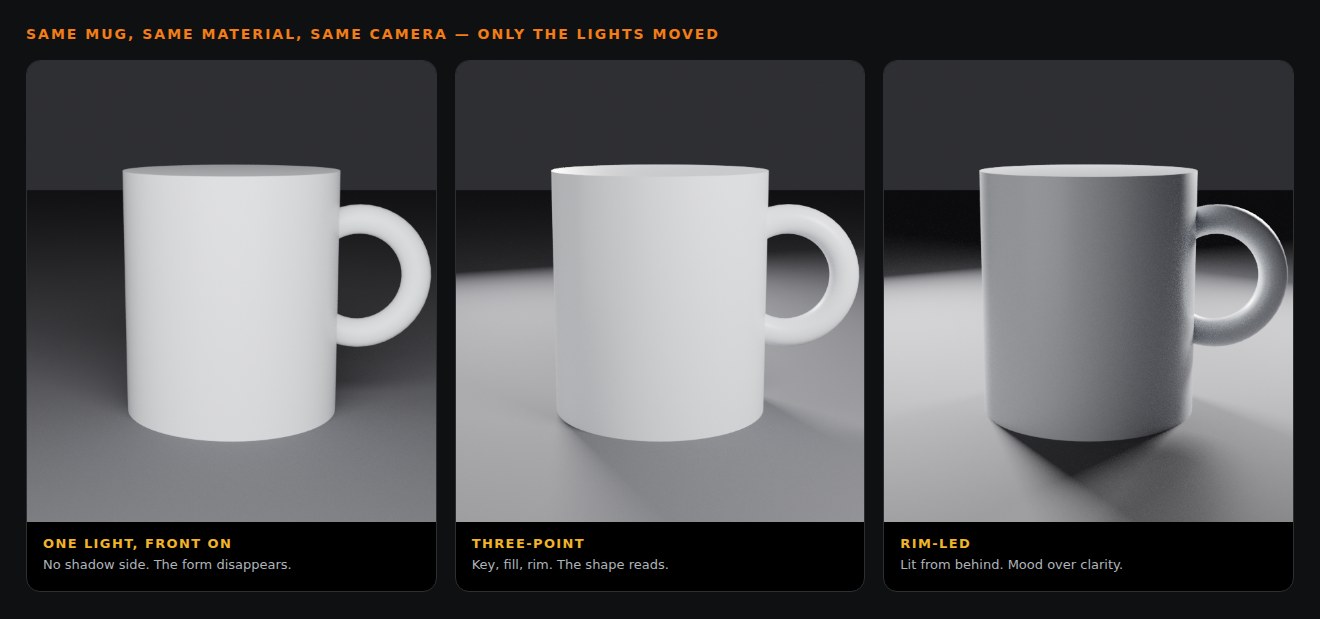
Those are three renders of one mug. Identical model, identical material, identical camera — the only thing that changed between them is where the lights are. The first one is what almost every beginner render looks like, and nothing about the model is wrong with it. Why your render looks flat is the fastest single improvement available to a beginner.
Which render engine? EEVEE is fast and approximate. Cycles is slow and physically accurate. Learn in EEVEE because the feedback loop is quick, render finals in Cycles when the image matters. The differences that actually affect your choice.
🧯 The Seven Things That Will Go Wrong
Not "might". Every one of these happens to everybody. Knowing the name of the problem is most of the fix, so here is the index:
| What you see | What it is |
|---|---|
| Texture will not show up | Five different causes, read the symptom first |
| Black patches or smeared shading | Shading artifacts |
| Viewport crawls, Blender freezes | Three kinds of slow, three fixes |
| Render comes out grainy | Noise, and how to actually remove it |
| Everything looks like plastic | Roughness and what it controls |
| Export lands sideways or tiny | FBX scale and rotation |
| Your character bends horribly | Weight painting |
Bookmark that table. It is the thing I would have wanted at week three.
📅 Thirty Days, Around A Job
Assumes four or five hours a week. Nobody needs another plan that assumes you are free all day.
Week 1 — Finish one thing. Install the LTS. Do the donut series end to end, even the parts that feel slow. Do not stop to research alternatives. The goal is a finished image, not understanding.
Week 2 — Work without a video. Model three simple objects from reference photos: a mug, a lamp, a dice. They will be bad. Use only G/R/S, extrude, inset, loop cut, bevel. When you get stuck, look up that one thing rather than finding a whole new tutorial.
Week 3 — Materials and light. Take the best of your three objects. Give it a real material. Light it three ways and render all three. Compare them. This week teaches more about why renders look good than any tutorial will.
Week 4 — Pick a direction, and one project. Game assets, product renders, or animation. Choose one and start a project you genuinely want to exist. It should be slightly too hard. That project is now your curriculum — every tutorial you watch from here is in service of finishing it.
How long the whole thing takes, honestly, if you want the realistic version of the months after this.
🚧 The Three Mistakes That Cost Months
1. Tutorial hopping. Watching is not learning; it only feels like it because it is comfortable. The hard, useful, slightly unpleasant part is sitting with your own file and no instructions. Ratio to aim for: one hour watching, three hours building.
2. Trying to learn all of Blender. Sculpting, simulation, grease pencil, the video editor — all of it is there, none of it is required. Breadth before depth produces someone who can follow any tutorial and finish nothing.
3. Starting with characters. Characters need modelling, topology, UVs, rigging, weight painting and animation simultaneously. It is the hardest thing in the program and beginners pick it first because it is the thing they want to make. Build props until props are easy.
🎯 The Short Version
Install the LTS. Do the donut once. Immediately make something it did not cover. Learn four modelling operations properly rather than forty badly. Get light right before you get materials right. Pick one direction in month one and ignore the rest of the program without guilt.
Everything else is detail, and the detail is much easier to pick up once something you made is sitting on your screen.
Download the PDF version → — the plan, the key tables and the troubleshooting index, in something you can keep open on a second screen or print.
Read next: How Long Does It Take to Learn Blender From Scratch? — the realistic timeline for the months after these thirty days, with what "good" looks like at each stage.
Stuck somewhere specific, or want the thirty days compressed? Book a free intro call →. An hour with someone watching your screen tends to clear up what a month of tutorials could not.
Newsletter
Get more tips like this
Short, practical Blender guides for beginners — straight to your inbox. No spam. Unsubscribe any time.